Zulip
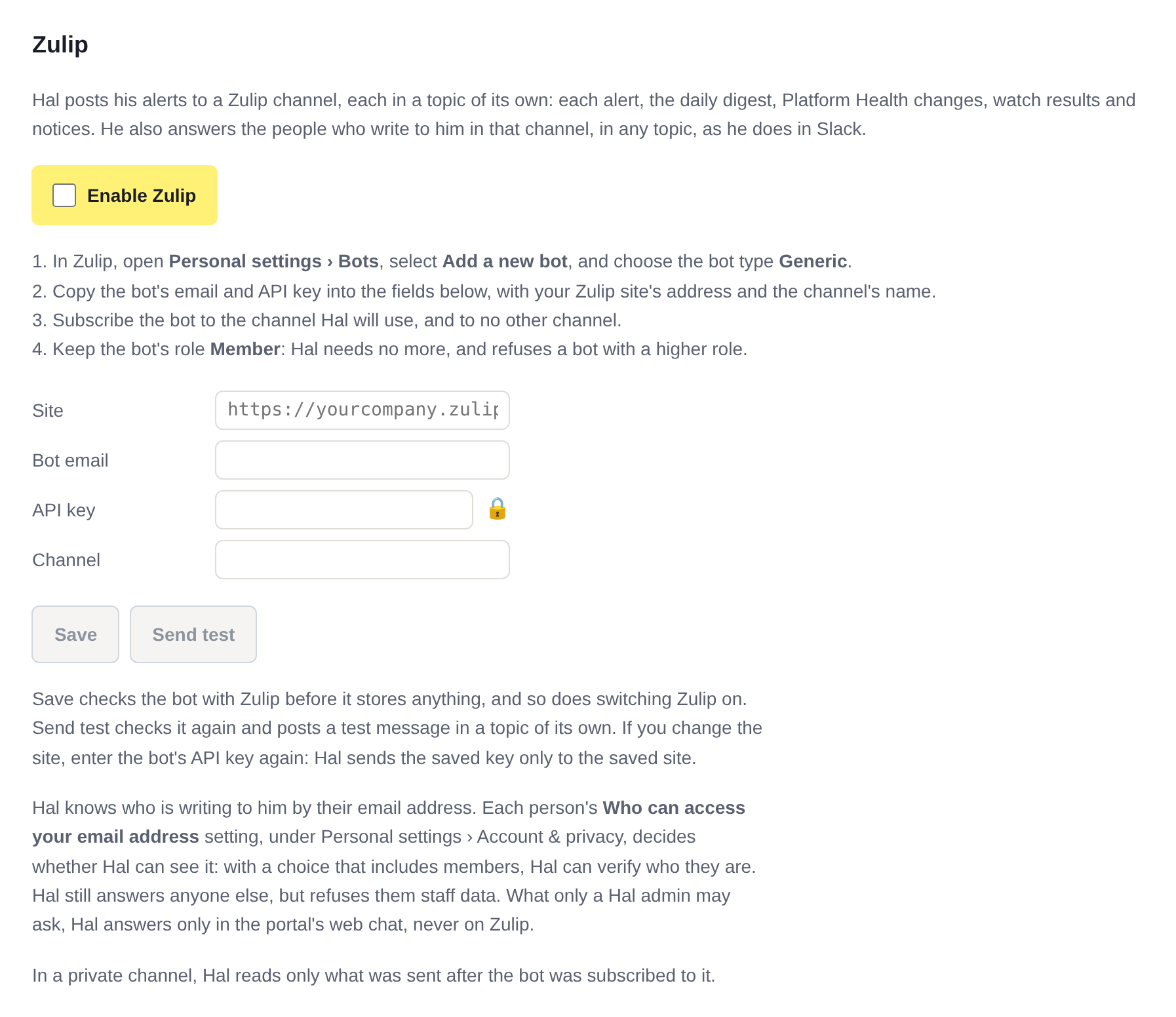
Hal posts every alert into one Zulip channel, each in a topic of its own: every escalation with its full write-up, the morning digest, Platform Health changes, watch results and notices. He answers your team in any topic of that channel. Zulip is an addition: the portal’s Events page and email stay the channels of record.
Every alert, in a topic of its own
Each escalation opens a topic named for its report and the client, with the severity, the summary, the full write-up and a link to the report in the portal beneath it. The morning digest, each Platform Health change and each notice open their own topics too, so a reply is always about one thing. A watch’s results follow in the topic of the report it follows. A report too long for one message continues in the next, in the same topic.
Write in a topic and Hal answers there, with that topic’s alert in mind. He keeps quiet where people are talking among themselves. Zulip, Slack and Teams are independent, so a team that works in Zulip gets its alerts and its answers there, and one that uses several can connect any of them.
See what Hal surfaces on your own clients.
No deck. Ask us anything first. When you want to see Hal on your own tenants, we sign a short evaluation agreement and stand up your instance; you connect one tenant, Hal watches it for 14 days, and we walk you through what he found.
- 01You ask us your questions. No deck, no demo dataset.
- 02You sign a short evaluation agreement, and we stand up your own instance.
- 03You connect one tenant from your own admin console. Hal watches it for 14 days.
- 04We walk through what he found. Keep going month to month, or revoke the scopes yourself and stop.