Zulip
Zulip is where Hal talks to your team, if that is where your team works. Connected, he posts each alert into one Zulip channel, in a topic of its own: every escalation as it happens, the morning digest, Platform Health changes, watch results and notices. He also answers the people who write to him in that channel, in any topic, with one conversation per topic.
Zulip is an addition, never the backbone. The portal’s Events page and email remain the channels of record: a Zulip outage, or a Zulip you never connect, changes nothing about what Hal delivers there. Zulip, Slack and Microsoft Teams are independent of one another: connect any of them, several or none.
Before you start
- Zulip Cloud and servers you run yourself both work. The server’s address must be a public https one, and the server must run Zulip 9.0 or later.
- You need a Zulip account that can create a bot.
- Decide the channel. One channel for Hal is the right shape, and everything below assumes it. Hal posts in it and reads it, and the bot is subscribed to no other.
Who you invite is who you trust
Everyone in the channel reads what Hal posts there: every escalation with its investigation, the digest and the health notices, client names included, and can ask Hal what a portal viewer can ask in the web chat, watches, notes and reports included. Keep the channel to staff you would give portal access, and remove people from it when they leave. In a private channel, Hal reads only what was sent after the bot joined it.
1. Create the bot in Zulip
- In Zulip, open Personal settings → Bots and select Add a new bot.
- Choose the bot type Generic, give it a name such as
Hal, and create it. - Copy the bot’s email and its API key.
- Subscribe the bot to the channel Hal will use, and to no other channel.
- Keep the bot’s role Member. Hal needs no more, and refuses a bot with a higher role.
2. Hand it to Hal
In the Hal portal, open Settings → Zulip.
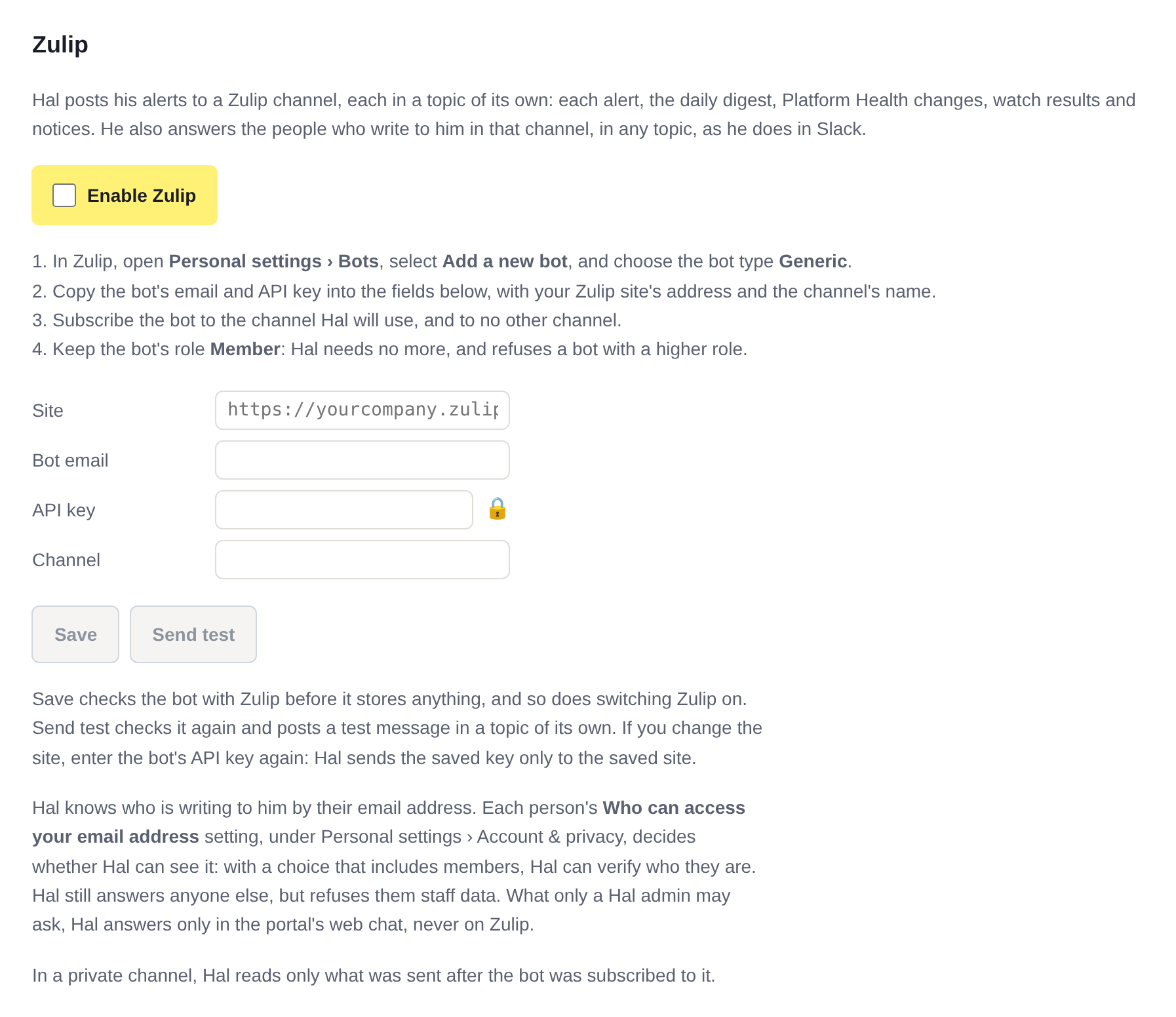
- Enter your Zulip site’s address, the bot’s email, its API key and the channel’s name, and select Save. Save checks the bot with Zulip before it stores anything, and says why if the bot fails: a key Zulip refuses, a deactivated bot, a role above Member, a bot not subscribed to the channel or subscribed to others as well, a person’s account entered as the bot, a channel that does not exist, a channel that allows only general chat (no named topics), or a server older than Zulip 9.0.
- Tick Enable Zulip and save. Switching Zulip on checks the bot again.
- Select Send test. Hal posts a message in a topic of its own, Hal connection test, followed by the time, and shows the check’s verdict and Zulip’s answer.
From then on each alert also goes to the channel, and Hal answers there.
If you change the site, enter the bot’s API key again. Hal sends the saved key only to the saved site.
Who Hal knows is asking
Hal knows who is writing to him by their email address, and some answers need it: ConnectWise staff data, which only Hal admins and the people listed under Settings → Integration Access may ask for, stays refused to anyone he cannot identify. What only a Hal admin may ask for, Hudu’s and IT Glue’s activity logs included, he answers only in the portal’s web chat, and refuses on Zulip even to an admin.
Each person’s Who can access your email address setting, under Personal settings → Account & privacy in Zulip, decides whether Hal can see theirs. With a value that includes members, Hal can verify who they are. With any other, Hal still answers them, but refuses them staff data, and tells them how to change the setting.
What arrives
Each alert opens a topic of its own:
- Every escalation, as it happens, in a topic named for its report ID and client: a header with its severity, report ID, client, time and model, then the summary, the full write-up, and a link to the report in the portal.
- The morning digest, once a day, with any ACTION items first.
- Platform Health changes, as the Platform Health email reports them: a new issue, a change of verdict, and the all-clear.
- Watch results: a hit, with its report; a one-time watch’s all-clear; and
a check that could not be completed. They follow in the topic of the report
the watch follows. A watch you open in a Zulip chat posts in that chat’s topic,
and any other watch in a topic named
Watch ·and the watch’s name. - Notices: maintenance on your instance starting and ending, and a change to the AI model in Settings.
- Microsoft 365 client secrets nearing expiry: one summary each day any secret is close to it.
A report too long for one message continues in the next, in the same topic.
Chatting with Hal
Write in any topic of the channel and Hal answers there; no @ is needed. He keeps quiet where people are talking among themselves.
- One conversation per topic. Reply under an escalation and Hal answers with that whole investigation in mind, including what he posted there afterwards, such as a watch’s results. Resolving a topic keeps its conversation.
- A fresh conversation is a new topic in the channel. A topic you rename starts a fresh one.
- Hal’s reaction is an hourglass on your message while he works, taken off when he has answered.
- Reports and files he produces arrive as a message in the topic linking the file.
- Direct messages to the bot are not read: Hal reads his channel alone.
If something is wrong
When the bot fails Hal’s check, Hal neither posts nor answers in Zulip, and tells you outside Zulip: the portal’s Health page shows an issue naming the check’s sentence, and a post that Zulip refuses for another reason shows one naming Zulip’s answer. Hal re-checks the bot every 30 minutes, and the first issue clears at the first check after the bot passes, or when Zulip is switched off. The second clears when a post reaches the channel, which Send test makes on demand.
Changing the channel or switching off
- Another channel: subscribe the bot to it, enter its name in Settings → Zulip, Save, and Send test. Hal answers nothing older in the new channel.
- Switching off: untick Enable Zulip and Save. The values are kept, so ticking it and saving again resumes.
Related: Slack and Microsoft Teams, and the other integrations.
See what Hal surfaces on your own clients.
No deck. Ask us anything first. When you want to see Hal on your own tenants, we sign a short evaluation agreement and stand up your instance; you connect one tenant, Hal watches it for 14 days, and we walk you through what he found.
- 01You ask us your questions. No deck, no demo dataset.
- 02You sign a short evaluation agreement, and we stand up your own instance.
- 03You connect one tenant from your own admin console. Hal watches it for 14 days.
- 04We walk through what he found. Keep going month to month, or revoke the scopes yourself and stop.