Zendesk
What Hal reads
Zendesk is your helpdesk, and Hal reads it as a log source. Every ticket update arrives as an event: the ticket’s number, status, priority, type and subject; the requester, their organization and their email domain; the assignee; the channel the ticket came in by; the tags; and the newest comment, whether a public reply or an agent’s internal note.
Each ticket is attributed to one of your clients through its Zendesk
organization: one that carries the client’s UID in a custom organization
field named halclient, or one whose domains match a client’s domains in
Hal. If the ticket has no organization, the requester’s own organization is
tried, then the requester’s email domain. A ticket that matches no client is
kept and marked unattributed, and a lookalike domain never matches.
Tickets are retained and searchable like every other source, and triaged with the rest of the client’s activity. A user reporting a suspicious email, a password prompt they did not ask for, or a vendor asking to change bank details is read beside that user’s sign-ins, mailbox rules and mail from the same window. When an investigation needs the whole conversation rather than the latest comment, Hal reads the full ticket, every comment in order.
What Hal writes
Two things, both internal notes on your own tickets, visible to your agents and never to the requester or your client.
- A note when a ticket leads to a report. When Hal raises a report from a ticket, he posts one internal note on that ticket: what he found, his verdict, and where the full report is.
- An answer when an agent asks. When one of your agents writes an internal note that names Hal, Hal, is this phishing?, @Hal can you check this user’s sign-ins, he answers on the same ticket with an internal note, from the ticket and from the evidence about the requester. The whole word “Hal” in an agent’s internal note is the trigger; a public comment or a requester never triggers it, and a note that names him without asking anything gets one line back. Hal keeps a thread per ticket, so a follow-up question continues the conversation. He never repeats a credential or a one-time code that appears in a ticket.
Hal’s Zendesk user is a Contributor, a role Zendesk itself limits to viewing the tickets in its groups and writing private comments. He cannot create tickets, reply publicly, change a field or be assigned. An internal note on your own helpdesk is the one record Hal writes anywhere, and it is your system, not a client’s. Read-only by architecture →
Start in chat
As a Hal admin, open the portal chat and say Connect Zendesk. Hal relays the steps on this page in order, with each client’s UID beside them. When you have pasted the credential and say so, he hands you a link to open in a browser signed in to Zendesk as Hal’s user; approving it completes the connection. He then tells you who authorized and asks you to confirm it is Hal’s user, reads your organizations, and says which are mapped to clients, which are not, and which conflict. Say you’re ready and he enables the integration. The rest of this page is the same steps written out.
Before you start
- You need a Zendesk administrator who can create team members and OAuth clients.
- Note your Zendesk subdomain, the part before
.zendesk.comin your address. - Hal’s user needs an email address your team can read. An alias on your helpdesk mailbox works.
- If your team signs in with SSO, Hal’s user needs a Zendesk password: in Admin Center go to Account → Security → Team member authentication, and under How team members sign in choose Let them choose. Otherwise you would have to create an identity for Hal in your identity provider.
Create Hal’s user
- In Admin Center, open People → Team → Team members and add a team member named Hal with the Contributor role. On every Suite and Support plan a Contributor takes no agent seat in Support, provided its roles in Zendesk’s other products (Chat, Guide, Explore) are left at their defaults; an Agent, Admin or Editor role there would use a seat.
- Add the user to every group whose tickets Hal should read. A Contributor sees only the tickets in its groups.
- Sign in once as that user to set its password. The OAuth approval in the next steps has to run as Hal’s user, not as you.
Create the OAuth client
In Admin Center open Apps and integrations → APIs → OAuth clients and click Add OAuth client.
- Name:
Hal. Description:Hal reads tickets and posts internal notes. Company: your MSP’s name, orHal AI. Zendesk shows these on its approval screen, which only Hal’s user will ever see. - Identifier:
hal. - Client kind: Confidential.
- Redirect URLs: one line,
https://portal.<code>.runhal.com/oauth/zendesk/callback, where<code>is the same code as your portal address. Hal gives you the exact address in chat. - Scopes:
tickets:read,tickets:write,users:read,organizations:read, and nothing else. Hal asks for exactly these four. - Save, then copy the Secret. It is shown once. The client identifier is the one you chose.
Hand it to Hal
In the Hal portal, open Settings → Zendesk, enter the Subdomain, the Client identifier and the Client secret, and Save. The credential goes into this page, never into chat.
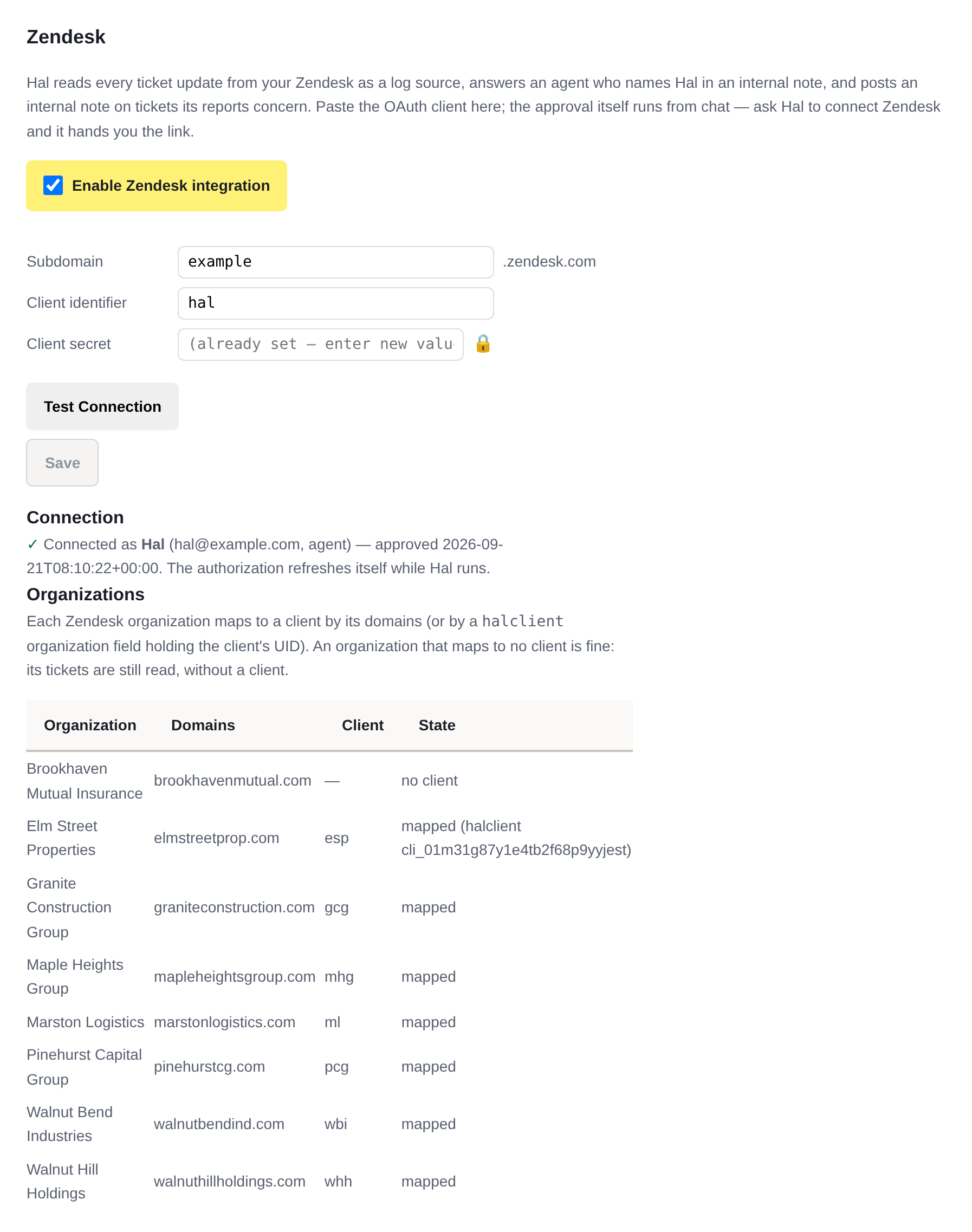
Then tell Hal in chat that it’s pasted. He gives you an authorization link. Open it in a browser signed in to Zendesk as Hal’s user, a private window is the easy way. Zendesk’s approval screen shows the name, description and company you gave the client and lists the four scopes in its own words; at the bottom it names the user you are signed in as, which should be Hal’s user. Click Allow.
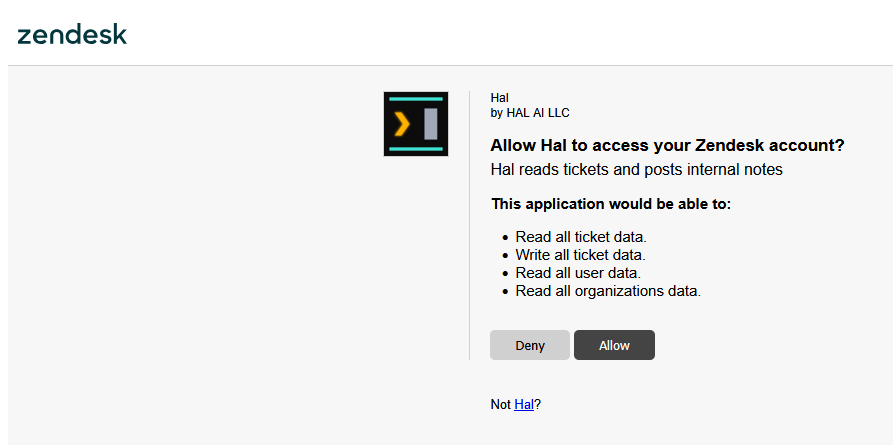
tickets:write; what Hal can actually write is bounded by the Contributor role, private comments only.Zendesk then returns you to a page on your portal that says Zendesk is authorized and names the user Hal is connected as. Close it and go back to chat, where Hal tells you who authorized and asks you to confirm it is Hal’s Contributor user. An approval by an end user is refused outright; if it was you or another agent, sign out of Zendesk, sign in as Hal, and ask again. He then reads your organizations.
Map organizations to clients
Hal maps each Zendesk organization to a client in one of two ways, and the first that applies wins:
- A custom organization field named
halclientholding the client’s UID, the value in the Client UID column of Hal’s Clients page. It is the same value the NinjaOne integration uses. - The organization’s domains matching a client’s domains in Hal, exactly.
Settings → Zendesk lists every organization with its domains, the client
it maps to, and its state: mapped, no client, two clients (its domains match
two of yours), or an unknown value in the field. Under the table is the
count of ticket updates in the last 7 days that matched no client. To fix a
row, add the domain to the client in Hal, which you can ask him to do in
chat, or set the halclient field in Zendesk. Tickets that match no client
are still kept and searchable, and Hal answers on them when an agent asks;
they are not read beside any client’s sign-ins and mail, because there is no
client to read them beside.
Keeping the connection
Zendesk’s OAuth clients issue short-lived access tokens and a refresh token that lasts 30 days, rotated on every refresh. Hal refreshes it himself as he runs, many times a day, so the authorization lapses only if your instance is down for 30 days. If it does, Settings → Zendesk says the authorization has expired, and Connect Zendesk in chat runs the approval again.
Cost
Ticket events ride the client’s normal triage cycle. Hal’s answers on tickets are chat turns on the interactive model, one per question, and show on the Costs page as chat.
See what Hal surfaces on your own clients.
No deck. Ask us anything first. When you want to see Hal on your own tenants, we sign a short evaluation agreement and stand up your instance; you connect one tenant read-only, Hal watches it for 14 days, and we walk you through what he found.
- 01You ask us your questions. No deck, no demo dataset.
- 02You sign a short evaluation agreement, and we stand up your own instance.
- 03You grant read-only scopes on one tenant in your own admin console. Hal watches it for 14 days.
- 04We walk through what he found. Keep going month to month, or revoke the scopes yourself and stop.