Slack
Slack is where Hal talks to your team, if you want him to. Connected, he posts every escalated alert into one private channel as it happens, with the full write-up in a thread beneath it; drops the morning digest there; uploads PDF reports on request; and answers any question your staff type in the channel, replying in a thread so each investigation keeps its own context. Everything he can do in the portal chat he can do here.
Slack is an addition, never the backbone. The portal’s Events page and email remain the channels of record: a Slack outage, or a Slack you never connect, changes nothing about what Hal delivers there.
Before you start
- You need to be a Slack workspace admin, or have one available, to create the app and install it.
- Hal connects to Slack outbound, using Slack’s Socket Mode. Nothing listens on your network and no public URL is involved.
- Decide the channel. One private channel for Hal (
#halworks) is the right shape: everything below assumes it.
Who you invite is who you trust
Membership of the Hal channel gives the access a portal viewer has. Anyone in it reads what Hal posts there, every escalation with its investigation, the digest and the health notices, sees client names, and can ask Hal what a portal viewer can ask in the web chat, watches, notes and reports included. Hal’s admin actions stay in the portal’s web chat: on Slack he refuses to onboard a tenant, rotate or reset a credential, delete a client or a tenant, or cancel Hal, even for an admin, and points to the web chat. The reads only an admin may ask for, Hudu’s and IT Glue’s activity logs, he gives on Slack only to a Hal admin, known by their Slack profile email. Keep the channel private, invite only staff you would give portal access, and remove people from it when they leave.
1. Create the Slack app
- Go to api.slack.com/apps and click Create New App → From scratch.
- App Name:
Hal. Pick your workspace. Create App.
You land on the app’s Basic Information page. The next three sections are all in this app’s left-hand settings menu, and the order matters: Socket Mode first, because Event Subscriptions will otherwise ask you for a public request URL you don’t have.
2. Turn on Socket Mode
- Open Socket Mode and switch on Enable Socket Mode.

- Slack asks you to generate an app-level token. Name it
hal-socket, make sure it carries theconnections:writescope, and Generate. - Copy the token. It begins
xapp-. This is Hal’s App Token.

connections:write.3. Give the bot its permissions
Open OAuth & Permissions, scroll to Scopes → Bot Token Scopes, and use Add an OAuth Scope to add these nine, exactly:
| Scope | Why Hal needs it |
|---|---|
chat:write | Post alerts, the digest and replies |
channels:read, channels:history | Find the channel and read messages in it (public channels) |
groups:read, groups:history | The same for a private channel, which yours is |
reactions:write | Acknowledge a message while he works on it |
users:read | Resolve who is talking to him, so he knows staff by name |
users:read.email | Read each person’s email, so he can tell whether they are a Hal admin |
files:write | Upload PDF reports |
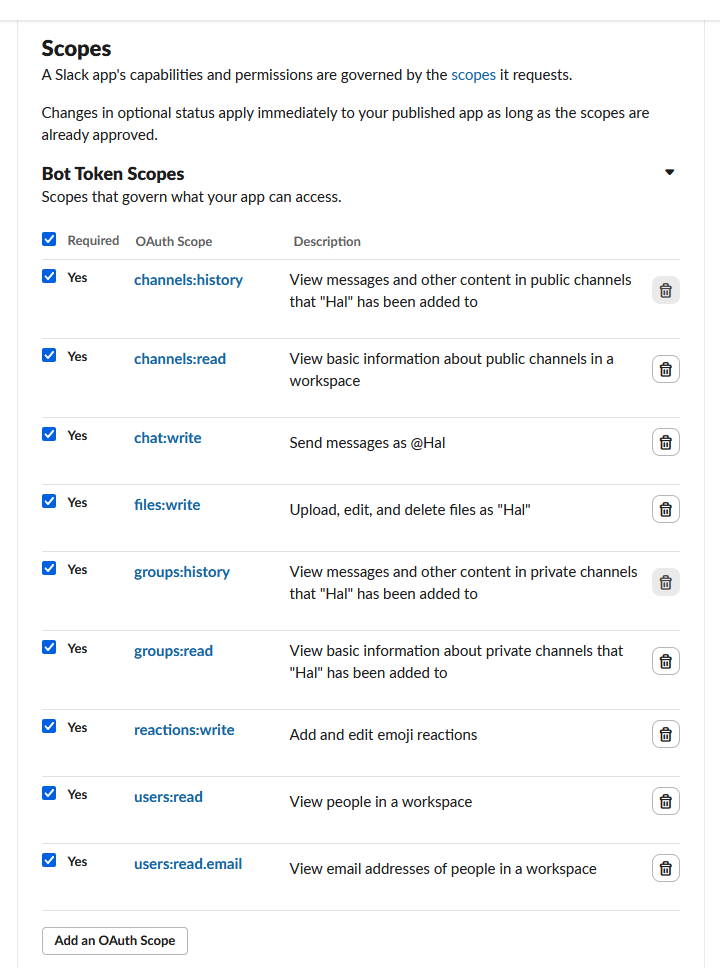
Nothing else. In particular no user-token scopes: Hal acts only as the bot.
4. Subscribe to messages
- Open Event Subscriptions and switch on Enable Events. With Socket Mode on, no request URL is asked for.
- Expand Subscribe to bot events and Add Bot User Event for both:
message.channelsmessage.groups
Your Hal channel is private, so message.groups is the one that matters;
message.channels costs nothing and saves a step if you ever move him.
Save Changes.

5. Install it and collect the bot token
- Back on OAuth & Permissions (or Install App), click Install to Workspace and Allow.
- Copy the Bot User OAuth Token. It begins
xoxb-. This is Hal’s Bot Token.
If you later add a scope or change the events, Slack asks you to reinstall the app, and the tokens don’t change. Taking a scope away needs a new token: see If the scopes don’t match.
6. The channel
- Create the private channel (
#hal), or open the one you’ve chosen. - Invite the bot: type
/invite @Halin the channel. - Get the Channel ID: click the channel name at the top, and it’s at the
bottom of the About tab, a short code beginning with
C. Hal wants the ID, not the name. (If yours begins withG, it is a legacy private group; create a fresh private channel and use that.)
7. Hand it to Hal
In the Hal portal, open Settings → Slack.
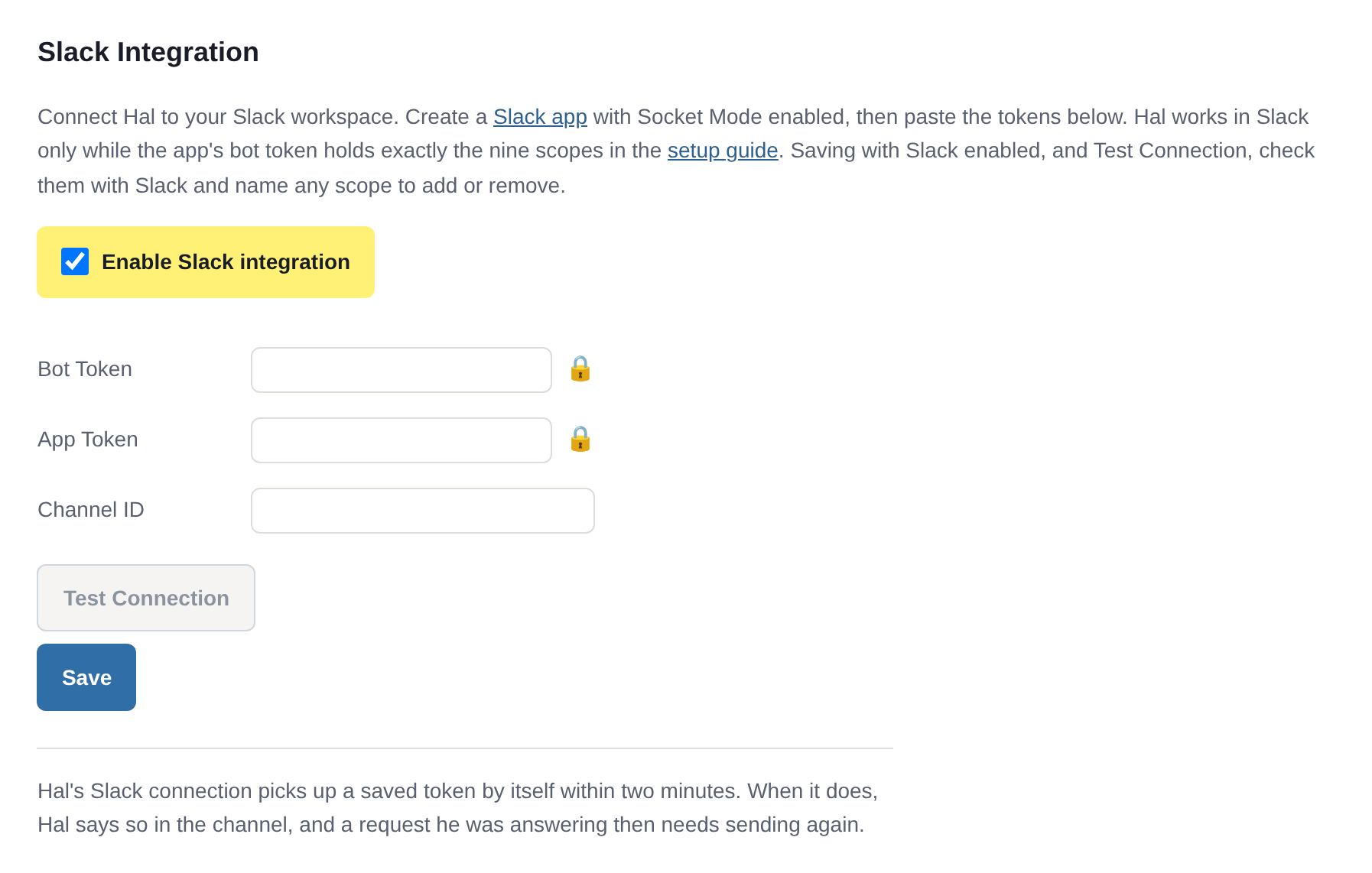
- Tick Enable Slack integration.
- Paste the Bot Token (
xoxb-), the App Token (xapp-) and the Channel ID. - Save. Hal first checks both tokens with Slack, and that the bot token holds exactly the nine scopes, and saves nothing Slack refuses. If a token is wrong, the app isn’t installed yet, or the scopes don’t match, Save says so, naming each missing or extra scope and the fix.
- Test Connection runs by itself once the Save is done: Hal asks Slack who the bot token belongs to and shows you the workspace and bot name, and confirms the nine scopes and the app token. Run it again whenever nothing is left unsaved; it checks what is saved.
Hal’s Slack bot checks Settings → Slack every minute while it waits for a token, so within a minute of the Save he is in the channel, with nothing for you to restart.
Say hello.
If the scopes don’t match
Hal works with the Slack app only when its bot token holds exactly the nine scopes above, no fewer and no more. Save, Test Connection and switching Slack on refuse a token that doesn’t, and store nothing; the refusal names each missing or extra scope and the fix. Test also runs by itself when you open Settings → Slack and after a Save. While Slack is on, Hal checks the token about once a minute: if it stops matching, he stops answering and posting in Slack within about two minutes, and resumes by himself once the app is fixed, with no restart.
While Slack is on and the bot token doesn’t pass, Hal also tells you outside Slack, in the same words as Test: each missing or extra scope and the fix, or Slack’s refusal of the token. It shows as a line in Active Issues on the portal’s Health page, with the health dot showing degraded; one Platform Health email to the alert address in Settings → Email when it starts; and an ACTION line in the morning digest every day it holds. Hal re-checks the token every 30 minutes. The notice clears at the first check after the fix, or once Slack is switched off in Settings → Slack, and if nothing else is outstanding the all-clear email follows. If Slack can’t be reached when he checks, the notice stays as it was until Slack answers. It is never posted to Slack, which is what’s broken: its line is left out of the digest’s Slack copy too.
- A missing scope: add it under Bot Token Scopes and reinstall the app to your workspace when Slack asks. The token stays the same and gains the scope.
- An extra scope: remove it, though that alone is not enough, because
Slack never takes a scope off a token it has issued. Then OAuth &
Permissions → Revoke All OAuth Tokens, reinstall the app, save its new
Bot User OAuth Token in Settings → Slack, and invite the bot back to
your Hal channel (
/invite @Hal): revoking the tokens removes it from its channels.
If Slack itself can’t be reached, Settings says Hal could not reach Slack and to try again. That says nothing about the token.
If Slack refuses the app token
The app token is what Hal’s Slack connection opens with. Save, with Slack on, and Test Connection check it with Slack, and Save stores none that Slack refuses:
Slack refused the app token (invalid_auth). Check that it is the app’s App-Level Token (Basic Information → App-Level Tokens) with the connections:write scope.
While Slack refuses the saved app token, revoked, say, Hal can’t open his
Slack connection, so he doesn’t answer in Slack; his alerts still reach the
channel, since they go out with the bot token. While Slack is on and the bot
token passes, Hal tells you in the same three places as the scope notice, in
the words Save and Test use, followed by “Hal doesn’t answer in Slack until
this is fixed, and resumes by himself once it is.” To fix it, generate a new
app-level token with the connections:write scope (step 2 above), paste it
into Settings → Slack and Save. Within two minutes Hal reconnects
with it, and the notice clears at the next check, every 30 minutes, or once
Slack is switched off. Like the scope notice, it is never posted to Slack.
If an alert doesn’t reach Slack
When one of Hal’s alerts doesn’t reach Slack for a reason other than the token, because Hal’s app was taken out of the channel, say, or the channel is gone, or Slack didn’t answer, Hal tells you in the same three places as a token that stops passing: the portal’s Health page reads Slack alert undelivered, with its line in Active Issues; one Platform Health email goes out when it starts; and an ACTION line is in the morning digest every day it holds. The line names Slack’s answer and what to check:
Hal’s last alert to Slack failed: channel_not_found. Check that Hal’s app is in the channel saved under Settings › Slack, and that the channel still exists.
Hal checks every 30 minutes. The notice clears at the first check after his next post lands in the channel, which the morning digest makes every day, or once Slack is switched off in Settings → Slack. Like the token notice, it is never posted to Slack.
What it looks like day to day
- Every escalation appears as a post naming the client, the severity and the headline, with the full investigation in a thread under it. Reply in that thread and Hal answers with the whole investigation in mind.
- The morning digest lands as one post each day.
- Health notices that need your action, an expiring credential, a source gone quiet, are posted too, except a Slack failure itself, which goes to the portal and email. Hal’s own housekeeping is not; it never reaches your workspace.
- Ask anything in the channel, no
@needed: he treats every message there as meant for him and starts a thread with his answer. He works on one thread at a time per conversation, and if several people ask at once he says so rather than silently queueing. - Reports: ask for a PDF in a thread and he uploads it there.
Rotating a token
Bot token (xoxb-): in the app, OAuth & Permissions → Revoke All
OAuth Tokens, then Install App → Reinstall to your workspace and copy
the new Bot User OAuth Token. Paste it into Settings → Slack and
Save; Test runs by itself. The revoked token stops Hal’s Slack bot within
about two minutes, and within two minutes of the Save he serves the new one;
there is nothing for you to restart.
Then one step that is easy to miss: revoking the tokens uninstalls the app,
and that removes the bot from every channel it was in. Reinstalling does
not put it back. Until you re-invite him, Test Connection passes (it checks
the tokens and the scopes, not the channel) while the channel stays silent, and
his next alert post raises Slack alert undelivered.
In #hal, type /invite @Hal again.
Events start flowing the moment he’s a member.
App token (xapp-): regenerate it on Basic Information → App-level
tokens, paste the new value into Settings → Slack and Save; Test
runs by itself. Within two minutes Hal reconnects with the new token and says
so in the channel, and a request he was answering then needs sending again.
Nothing else changes.
Related: Using Hal in chat for what to ask him once he’s there, and the other integrations.
See what Hal surfaces on your own clients.
No deck. Ask us anything first. When you want to see Hal on your own tenants, we sign a short evaluation agreement and stand up your instance; you connect one tenant, Hal watches it for 14 days, and we walk you through what he found.
- 01You ask us your questions. No deck, no demo dataset.
- 02You sign a short evaluation agreement, and we stand up your own instance.
- 03You connect one tenant from your own admin console. Hal watches it for 14 days.
- 04We walk through what he found. Keep going month to month, or revoke the scopes yourself and stop.