NinjaOne
What Hal reads
NinjaOne is the RMM source. Hal reads it so an alert that names a host arrives with the device already identified: what it is, whose it is, and whether it is healthy. In chat he answers device questions from the same data: which of a client’s machines are offline, out of warranty, or behind on patches.
- Managed device inventory: hostname, model, OS version, online or offline state, last contact, and warranty dates where NinjaOne has them. Warranty status is expired, expiring within 90 days, active, or unknown; a device NinjaOne holds no warranty record for is unknown, not out of warranty
- The organization structure that maps each device to a client
- Patch status: pending, approved, failed and rejected OS and third-party patches, for one device or across a client: what is unpatched and on how many machines, or which machines are missing a named update. A patch your policy has declined is rejected, not missing, and Hal keeps the two apart
- Installed software and Windows services, for one device or across a client: which machines run a product, and which versions
- Antivirus product, version, real-time-protection state, and detected threats
- Active RMM alerts and the device activity feed
- Remote-access sessions: who used NinjaOne Remote at a client, on which device, from which machine and address, when, and for how long
One limit worth knowing: NinjaOne’s Vulnerabilities (CVE) view has no API, so Hal cannot list a client’s CVEs. Pending and failed patches are the nearest thing he can read.
Two things Hal does with this in triage. When Microsoft names the device on a sign-in, he matches it to NinjaOne by hostname, so a login from a machine you manage reads as one of yours wherever it comes from. And a domain-joined device that your RMM does not know is raised as an inventory gap, because a machine outside the RMM is a finding in itself.
Access is read-only. Hal uses NinjaOne’s Monitoring scope and nothing else: he never writes back, runs scripts, or changes a device.
Start in chat
As a Hal admin, open the portal chat and say Connect NinjaOne. Hal relays the steps on this page in order, lists each client’s value for the organization field so you can paste it, and when you reply that you’re done he signs in with the credential, reads every organization, and tells you what is mapped, what is not, and which organizations look missed. Say you’re ready and he enables the integration. The rest of this page is the same steps written out, for reading ahead or checking a detail.
Before you start
- You need a NinjaOne administrator who can create client apps and custom fields.
- Note the hostname you sign in at. It names your NinjaOne instance, and Hal needs it: a credential only works against its own instance.
| Sign-in hostname | Instance |
|---|---|
app.ninjarmm.com | US (the default) |
eu.ninjarmm.com | EU |
ca.ninjarmm.com | CA |
oc.ninjarmm.com | OC |
- One client app covers your whole NinjaOne instance. Hal sees every organization the app can see; which client each organization belongs to is your call, made with a custom field in the last step.
Create the client app
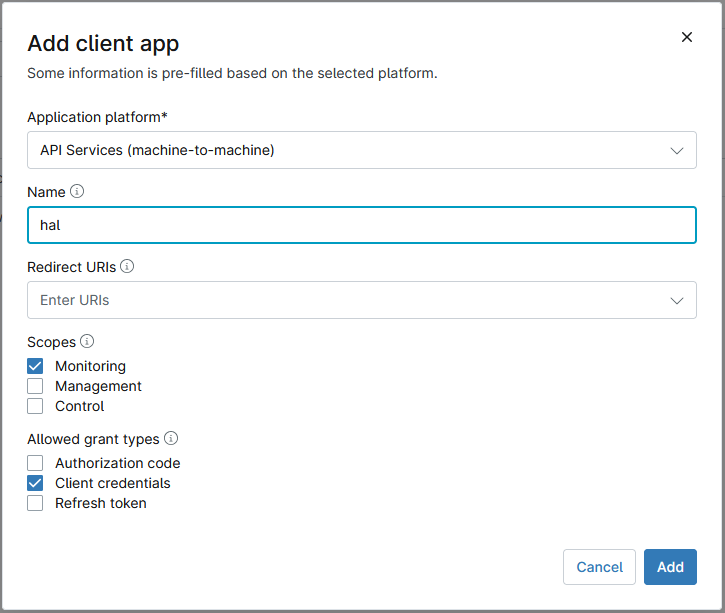
- In NinjaOne, open Administration → Apps → API, then the Client App IDs tab, and click Add.
- Application platform: API Services (machine-to-machine). This is the platform for a server-to-server integration where no person signs in.
- Name:
Hal. - Redirect URIs: leave empty. A redirect URI only matters when a person signs in through a browser and NinjaOne has to send them somewhere afterwards; Hal signs in with the client ID and secret directly. NinjaOne requires one only for the Authorization code grant, which you leave unticked in step 6.
- Scopes: tick Monitoring only. Leave Management and Control unticked. Monitoring is NinjaOne’s read-only scope for monitoring data and organization structure. Management would let the app change devices and organizations and run scripts, and Hal must never hold it.
- Allowed grant types: tick Client credentials and nothing else. It is the machine-to-machine grant Hal uses, and with it ticked the Redirect URIs field stays optional. Leave Authorization code and Refresh token unticked; Hal requests a fresh token when the current one nears expiry.
- Save, then copy the Client ID and the Client secret. The secret is shown once. If it is lost, open the app and click Generate new secret, which invalidates the old one.
Hand it to Hal
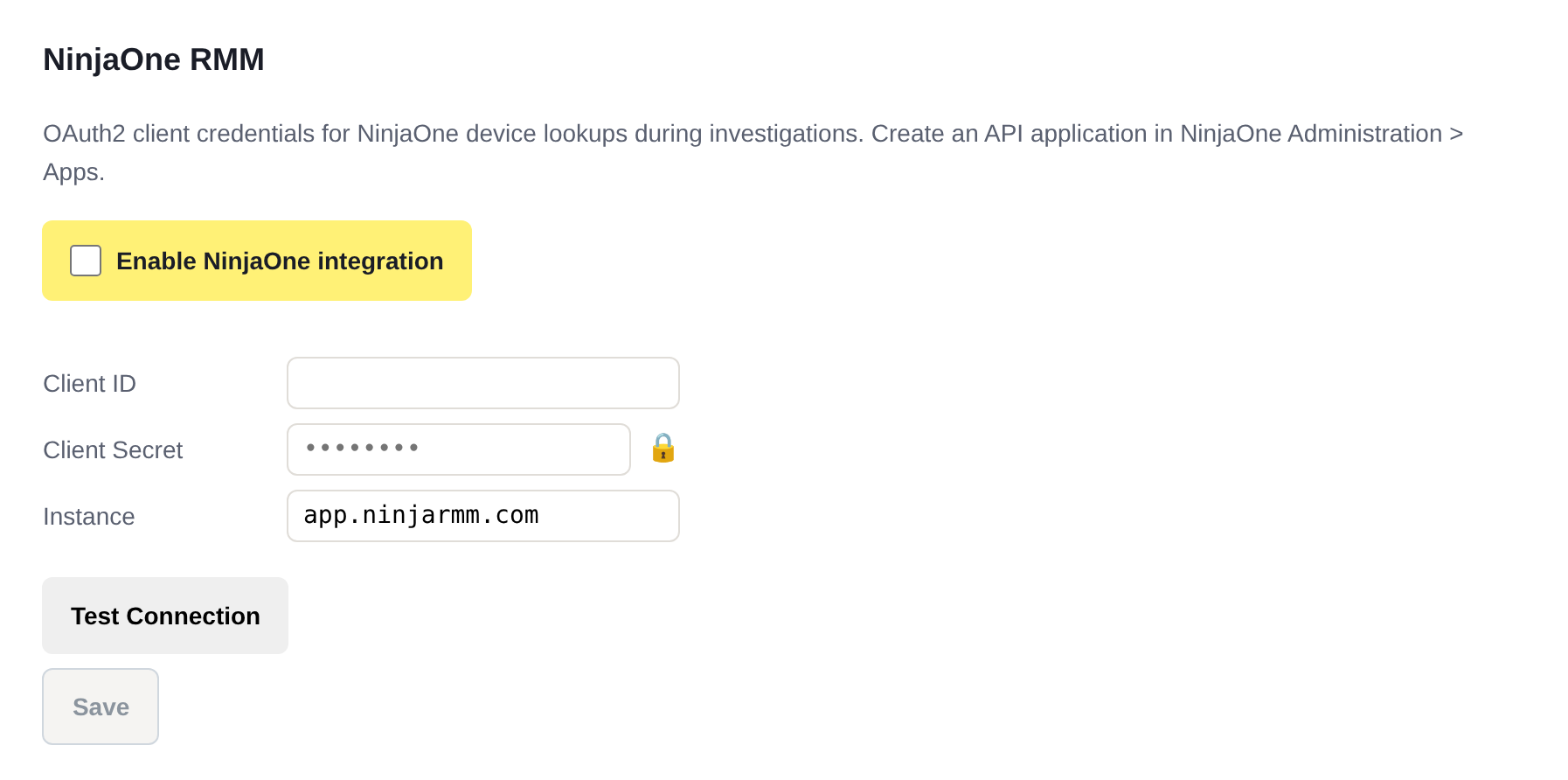
In the Hal portal, open Settings → NinjaOne RMM, paste the Client ID and Client Secret, set Instance to the hostname from the table above, and Save. The credential goes into this page, never into chat. Then either tell Hal in chat that it’s pasted, and he signs in with it and lists your organizations, or click Test Connection on the same page for the same check by hand.
The integration is enabled when you tell Hal you’re ready at the end of the setup. The Enable NinjaOne integration toggle on this page does the same thing by hand.
Label each organization with its client
Hal needs to know which of your NinjaOne organizations belong to which client. You tell him with one custom field, set once per organization. In chat he lists each client’s value as he walks you through this.
- In NinjaOne, open Administration → Organizations → Organization custom fields and click Add custom field.
- Type: Text. Label and Name:
halclient, exactly: lowercase, no spaces or punctuation. NinjaOne field names are alphanumeric, and Hal reads the field by that name. Leave Required off. - On the permissions tab, give Technicians edit access, so your admins can set the value, and give the API Read Only. Hal reads the field and never writes it. Save.
- For each organization that belongs to a client, open the organization
in NinjaOne (search for it from the Dashboard, or click it), open its
Custom tab and choose Default fields. Under Organization -
Default fields, edit halclient and paste that client’s client
UID, the value in the Client UID column of Hal’s Clients page (it
begins
cli_, and the column has a copy button). Paste it rather than typing it; case does not matter. Leave the field empty on organizations that are not a client’s: your own internal infrastructure, staging or lab organizations. - Tell Hal you’re done. He reads every organization’s field on the spot and tells you which organizations are mapped to which client, which carry no value, and which of those look like a client’s by name, so a missed one is caught before it matters. Ask him the same question any time later.
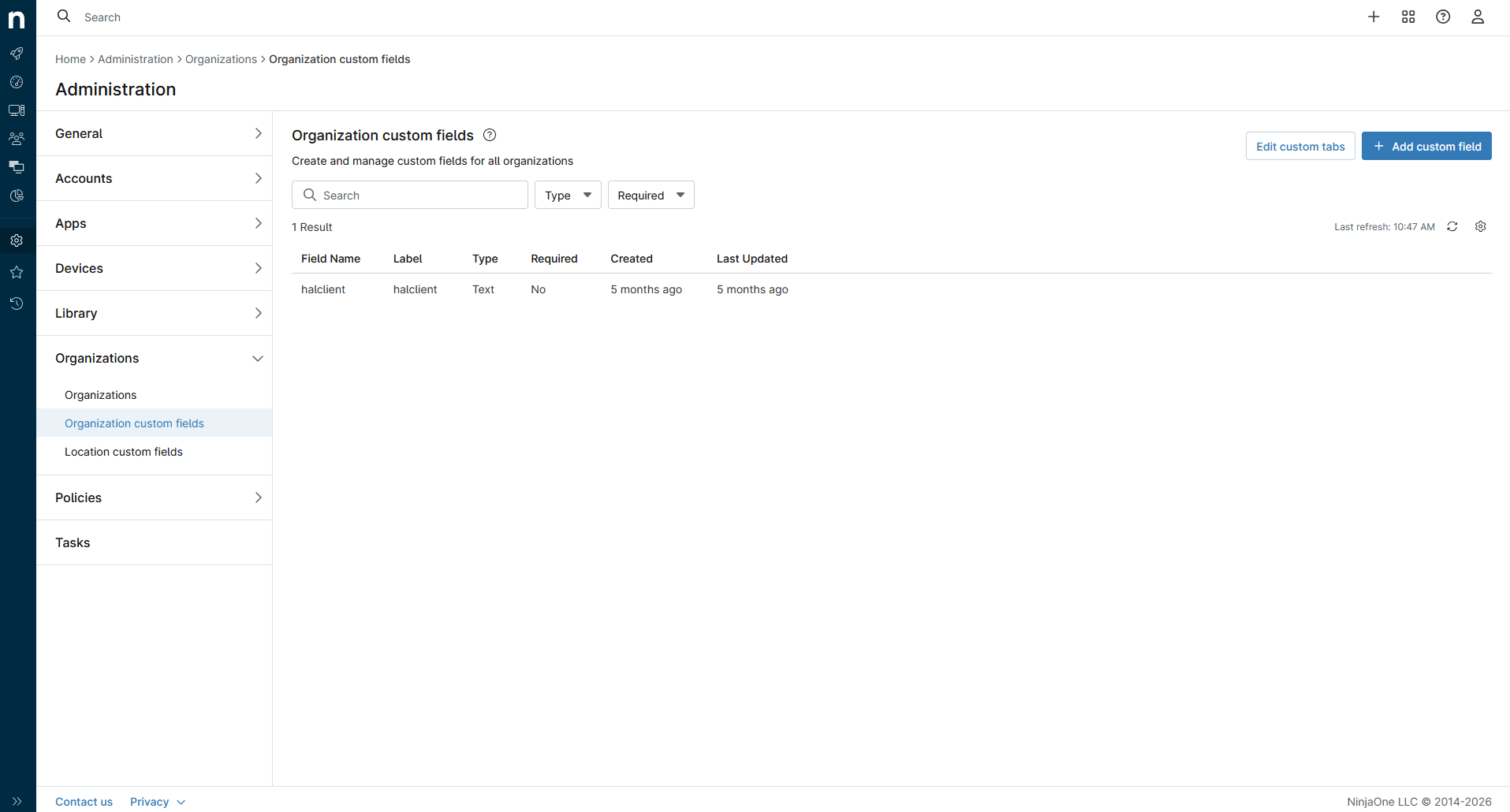
halclient, and its value on each organization is the client’s UID from Hal’s Clients page.Hal re-reads the field every 30 minutes. A client with several organizations, one per site or a separate one for its domain controllers, gets all of them under one value, and every client-scoped question in chat covers them together. Organizations with no value are simply not attributed to any client. Because the value is the client’s permanent UID rather than a name, you can rename a client in Hal and nothing in NinjaOne needs touching.
If a value matches no client, a typo, Hal keeps whatever mapping that organization already had and flags it on the portal’s Health page: NinjaOne organization “X” has halclient “y”, which is not a client UID. The notice stands until you correct or clear the field.
Rotating the credential
In NinjaOne, open the client app and click Generate new secret. Paste the new secret into Hal’s Settings → NinjaOne RMM and Save. Hal uses it on his next token request: within the hour at most, or at once if NinjaOne rejects the old token. To remove Hal’s access entirely, delete the client app in NinjaOne.
See what Hal surfaces on your own clients.
No deck. Ask us anything first. When you want to see Hal on your own tenants, we sign a short evaluation agreement and stand up your instance; you connect one tenant, Hal watches it for 14 days, and we walk you through what he found.
- 01You ask us your questions. No deck, no demo dataset.
- 02You sign a short evaluation agreement, and we stand up your own instance.
- 03You connect one tenant from your own admin console. Hal watches it for 14 days.
- 04We walk through what he found. Keep going month to month, or revoke the scopes yourself and stop.