Microsoft Teams
Microsoft Teams is where Hal can post his alerts, if that is where your team works. Connected, he posts each one into a Teams channel as a card of its own: every escalation as it happens, the morning digest, Platform Health changes, watch results and notices. Teams receives alerts only. Chat with Hal stays in the portal’s web chat and in Slack, and Slack and Teams are independent of each other: connect either, both or neither.
Teams is an addition, never the backbone. The portal’s Events page and email remain the channels of record: a Teams outage, or a Teams you never connect, changes nothing about what Hal delivers there.
Before you start
- Hal posts through a workflow you create in Teams from Microsoft’s template Send webhook alerts to a channel. The workflow’s link is all Hal holds: no app registration, no Microsoft sign-in, nothing installed. “Using these templates and the Teams webhook trigger does not require a premium license”, in Microsoft’s words.
- Decide the channel. Microsoft does not support these workflows in private channels. A standard channel is open to everyone in its team.
- Decide who creates the workflow. It belongs to that person, and Teams names them under every card Hal posts.
Who is in the team is who reads it
Everyone in the channel’s team reads what Hal posts there: every escalation with its full write-up, the digest and the health notices, client names included. Choose a team of staff you would give portal access. Teams carries no chat, so nobody can ask Hal anything there. The workflow’s link is the other key: anyone who has it can post cards to the channel. Hal shows it only to admins, masked, and you can paste a new one at any time.
1. Create the workflow in Teams
- In Teams, open the channel’s More options (…) menu and choose Workflows.
- Choose the template Send webhook alerts to a channel, pick the team and the channel, and select Save.
- Leave who can trigger the workflow at Anyone, the template’s setting. Hal has no Microsoft sign-in to post with, so the link itself is what lets his cards in.
- Copy the workflow’s webhook link.
If Save fails with “The connection request may have failed”, the workflow’s owner has not used Power Automate before: open make.powerautomate.com once as that person, select Get started, and save again.
2. Hand it to Hal
In the Hal portal, open Settings → Microsoft Teams.
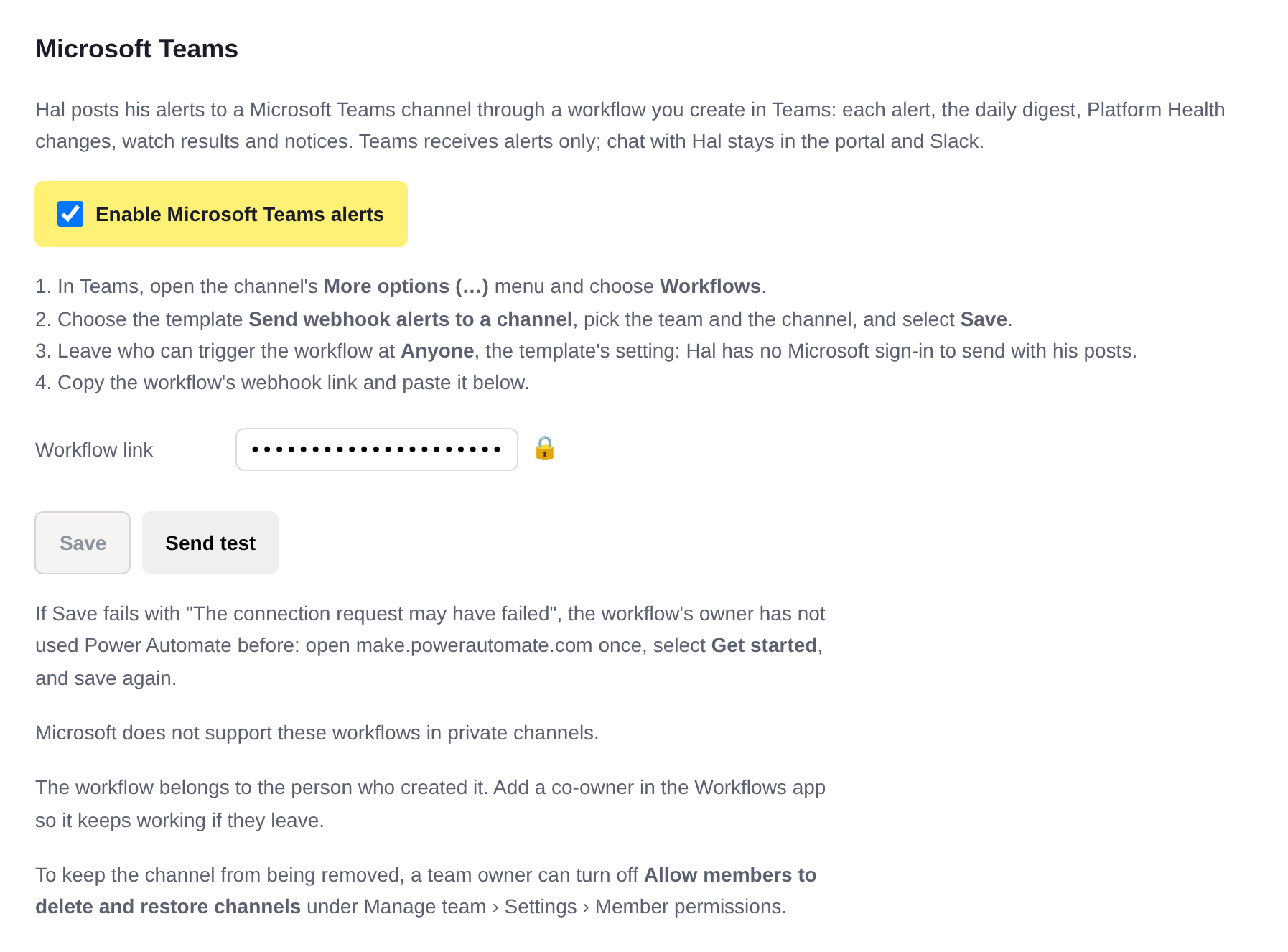
- Tick Enable Microsoft Teams alerts, paste the link into Workflow link, and select Save, which stores the two together. Save takes only a Microsoft Teams workflow link, and says so if it is anything else.
- Select Send test, which is ready once the link is saved. Hal posts a card reading “Hal can post alerts to this channel” and shows Microsoft’s answer. Microsoft accepts a card before the workflow runs, so a pass means the card was accepted: it appears in the channel shortly, and if it doesn’t, the workflow’s run history in Teams shows why. A refusal shows Microsoft’s status and error. A 401 or 403 means the link was not copied whole, or the workflow is not set to Anyone.
From then on each alert also goes to the channel.
Keep it working
- Add a co-owner. The workflow belongs to the person who created it, so add a co-owner in the Workflows app, and it keeps working if they leave.
- Keep the channel. To keep the channel from being removed, a team owner can turn off Allow members to delete and restore channels under Manage team › Settings › Member permissions.
What arrives
Each alert is a card of its own:
- Every escalation, as it happens: a header with its severity, report ID, client, time and model; then the summary, the full write-up, and a link to the report in the portal.
- The morning digest, once a day, with any ACTION items at the top, above the day’s summary.
- Platform Health changes, as the Platform Health email reports them: a new issue, a change of verdict, and the all-clear.
- Watch results: a hit, with its report; a one-time watch’s all-clear; and a check that could not be completed. A watch that follows a report names it on each card, since a card in Teams is not posted in a thread under it.
- Notices: maintenance on your instance starting and ending, a change to the AI model in Settings, and a restart of Hal’s services requested from the portal.
- Microsoft 365 client secrets nearing expiry: one summary each day any secret is close to it.
A report too long for one card stops at the last whole line that fits, followed by “The rest of this report is in Hal” and a link to the report.
Teams shows each card as sent by Workflows, with a line under it naming the workflow’s owner: “name used a Workflow template to send this card”.
If a post fails
Hal records Microsoft’s answer to every post. When Microsoft refuses one, because the link is wrong, say, or the workflow is turned off or deleted, or when Microsoft doesn’t answer, Hal tells you outside Teams: the portal’s Health page reads Microsoft Teams alert undelivered, with its line in Active Issues; one Platform Health email goes out when it starts; and an ACTION line is in the morning digest every day it holds. The line names Microsoft’s answer and what to check:
Hal’s last alert to Microsoft Teams failed: HTTP 401, AuthorizationFailed: The authentication credentials are not valid. Check that the workflow is on and set to Anyone, or paste a new link under Settings › Microsoft Teams.
Hal checks every 30 minutes. The notice clears at the first check after a card is accepted, which Send test makes on demand, or once Teams is switched off in Settings → Microsoft Teams. If Slack is connected, the email’s and the digest’s posts there carry it too. It is never posted to Teams.
What Hal sees is Microsoft’s answer, which comes before the workflow runs. A card Microsoft accepts and the workflow then fails to post is in the workflow’s run history in Teams, where its owners see it.
Changing the channel or switching off
- Another channel: create a workflow there, paste its link into Settings → Microsoft Teams, Save, and Send test.
- Switching off: untick Enable Microsoft Teams alerts and Save. The link is kept, so ticking it and saving again resumes.
- Removing the link: untick Enable Microsoft Teams alerts, empty Workflow link, and Save. The link is removed, Teams is off, and Send test waits for a new link. With the switch ticked, Save refuses an empty box: “Paste a workflow link to switch Teams on.”
- Deleting the workflow: switch Teams off in Hal too, or remove its link, or his next post is refused and raises the notice above.
Related: Slack for chat with Hal in your own workspace, and the other integrations.
See what Hal surfaces on your own clients.
No deck. Ask us anything first. When you want to see Hal on your own tenants, we sign a short evaluation agreement and stand up your instance; you connect one tenant, Hal watches it for 14 days, and we walk you through what he found.
- 01You ask us your questions. No deck, no demo dataset.
- 02You sign a short evaluation agreement, and we stand up your own instance.
- 03You connect one tenant from your own admin console. Hal watches it for 14 days.
- 04We walk through what he found. Keep going month to month, or revoke the scopes yourself and stop.