Meraki
What Hal reads
Meraki is the network source. Hal reads it so an IP in an alert resolves to a real place: which site, which firewall, whether that address is a known corporate WAN egress. A sign-in from a recognized site reads very differently from one off an unknown network, and Meraki is how Hal tells them apart. In chat he answers network questions from the same data.
- Device inventory: firewalls, switches and access points, with firmware and online state
- Network topology and connected clients
- VPN tunnel status and WAN uplink health
- Security configuration: firewall rules, NAT, content filtering, IDS and IPS posture
- Wireless health, switch port status, and recent network and security events
- Dashboard admin and login-security posture, and the configuration change log
Access is read-only: Hal reads the Dashboard and never changes a network setting. A Meraki API key is not scoped. It can do exactly what its identity can, so the identity’s role is what keeps Hal read-only.
Start in chat
As a Hal admin, open the portal chat and say Connect Meraki. Hal first asks whether one login shows every client’s organization or you sign in separately per client, because he reads Meraki through one key of one identity. Then he relays the steps below, and when you reply that you’re done he reads the dashboard, lists the organizations the key sees, and tells you which networks are mapped to which client and which are not. Say you’re ready and he enables the integration. The rest of this page is the same steps written out.
Before you start
- Meraki’s read-only organization role is called Observer. Hal’s identity must be an Observer administrator in every client organization.
- The identity must be a native Meraki login, an email address and password with two-factor on, not SSO or SAML. Meraki does not let SAML administrators view or generate API keys.
- One key covers every organization the identity is in. If you sign in separately per client today, the identity is added to each organization first.
The identity and the key
- Decide which identity Hal uses: one you already have that is an Observer in every client organization, or a new native identity. Add it as an Observer in every organization: Organization → Configure → Administrators → Add admin, Organization access Observer, in each one.
- Sign in as that identity and check that it sees every organization.
- In each organization, Organization → Configure → API & Webhooks: API access must be enabled.
- Generate the key: Organization → Configure → API & Webhooks → API keys and access → Generate API key, or the API access section of your profile. Copy it once. Meraki does not show it again.
Hand it to Hal
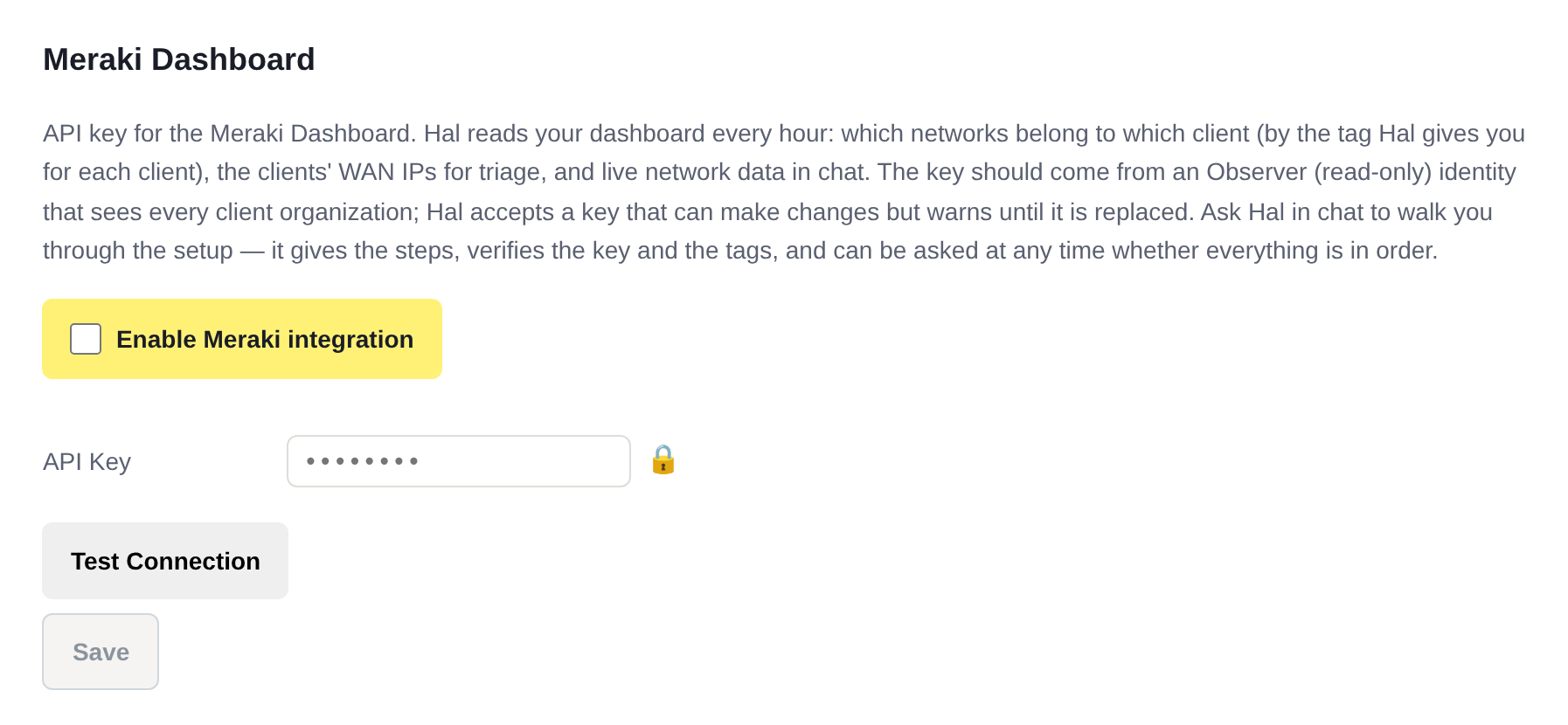
In the Hal portal, open Settings → Meraki Dashboard, paste the key, and Save. The key goes into this page, never into chat. Then tell Hal you’re done. A key generated moments ago can take a couple of minutes to start working, and Hal retries for about three minutes before calling it wrong.
Hal then reads the dashboard and reports what he found: the identity the key belongs to and every organization it sees (read the names, because Hal cannot see an organization the identity is not in, so only you can confirm the list is complete), each client’s exact tag and its mapped networks, the networks with no tag, any tag that is a mistake, and a warning if the key can make changes anywhere. A write-capable key is accepted with that warning, repeated hourly until the key comes from an Observer identity. If API access is off in an organization, or the key sees none, he says so and nothing is enabled until it is fixed.
The integration is enabled when you tell Hal you’re ready. The Enable Meraki integration toggle on the same Settings page does the same thing by hand.
Tag each network with its client
Hal needs to know which networks belong to which client. You tell him with a tag on each network, and he gives you the exact tag for each client. The tag carries the client’s permanent ID, so renaming a client later never touches Meraki.
- In the Meraki dashboard, open the organization, then Monitor → Overview, and select the client’s network or networks.
- Tag → paste the client’s tag → Add option → Add.
- Leave your lab, inventory and temporary networks untagged. An untagged network is a fact, not a problem: Hal names them and offers the tag only if you want one mapped.
Hal reads the dashboard every hour, and the check in chat reads it on the spot. Ask him any time which networks are set up and which are not, what a network holds, or which clients have no Meraki network yet. A tag that names a client that no longer exists, or a network carrying two Hal tags, is reported as a mistake along with the current tag to use.
Rotating the key
Generate a new key for the same identity, or for a new Observer identity, paste it into Settings → Meraki Dashboard, Save, and tell Hal. He checks it the same way. To remove Hal’s access, revoke the key in the Meraki dashboard.
See what Hal surfaces on your own clients.
No deck. Ask us anything first. When you want to see Hal on your own tenants, we sign a short evaluation agreement and stand up your instance; you connect one tenant, Hal watches it for 14 days, and we walk you through what he found.
- 01You ask us your questions. No deck, no demo dataset.
- 02You sign a short evaluation agreement, and we stand up your own instance.
- 03You connect one tenant from your own admin console. Hal watches it for 14 days.
- 04We walk through what he found. Keep going month to month, or revoke the scopes yourself and stop.