Hudu
What Hal reads
Hudu is the documentation source. It holds the human-written context, contacts, procedures, network and circuit notes, that an RMM or a firewall can’t supply. Hal reads it so an alert arrives with the client’s documented reality attached, not just its telemetry.
- Companies and the client hierarchy that groups them
- Assets and their documented fields
- People and contacts at each client
- Network and circuit information, WAN links, ISPs, VLANs, wireless, AD
- Locations, plus expiring certificates, licenses, warranties, and domains
- Knowledge base articles, dependency relationships, and flagged items
- The activity log: who viewed, changed or signed in to what inside Hudu, over a window you ask about, with the user, the action, the record and the time. A password record’s details, its encrypted value and any one-time-code secret, are withheld, and only article, asset, company and website records keep their details at all.
Hal only reads: he never edits documentation. An asset in a Credit Card layout shows only that it exists, with its name, company, layout and dates, never its field contents, and an activity entry that touches a card’s fields has its details withheld.
Who can read the activity log. Hudu’s activity log records who viewed
which password and when each person signed in, so in chat Hal gives the log
only to a Hal admin: the portal owner or anyone on the portal’s admin list. He
checks the identity the sign-in verified: your web chat sign-in, the email
Slack returns for you (which needs the Slack app’s users:read.email scope,
see Slack), or a Zendesk note’s author. Anyone
else is refused and told to ask a Hal admin, and without a verified email Hal
points you to the portal’s web chat. Hal’s own investigations still read the
log when an incident calls for it, and one that a watch or a sentry opens
names on its report who opened the watch or put the person under sentry.
Start in chat
As a Hal admin, open the portal chat and say Connect Hudu. Hal relays the steps on this page in order and lists each client’s UID so you can paste it, and when you reply that you’re done he signs in with the key, reads every company, and tells you which companies map to which client, which ID Numbers name no client, and how many companies have none. There is no separate step to switch the integration on: the checkbox on the Settings page does that. The rest of this page is the same steps written out, for reading ahead or checking a detail.
Before you start
- You need a Hudu user who can open Admin → Basic Information → API Keys and edit companies.
- Note the hostname you sign in to Hudu at, for example
yourcompany.huducloud.com. Hal needs it with the key. - Hal reads every company the key can see. Which client each company belongs to is your call, made with each company’s Company ID Number in the last step.
Create the API key
- In Hudu, open Admin → Basic Information → API Keys and create a key
named
Hal. - A Hudu key cannot be made read-only, but three things can be withheld when it is created: viewing passwords, deleting data and exporting data. Withhold all three. Hal only reads with the key, and the endpoints that return vaulted passwords are outside what he can query in any case.
- Copy the key.
Hand it to Hal
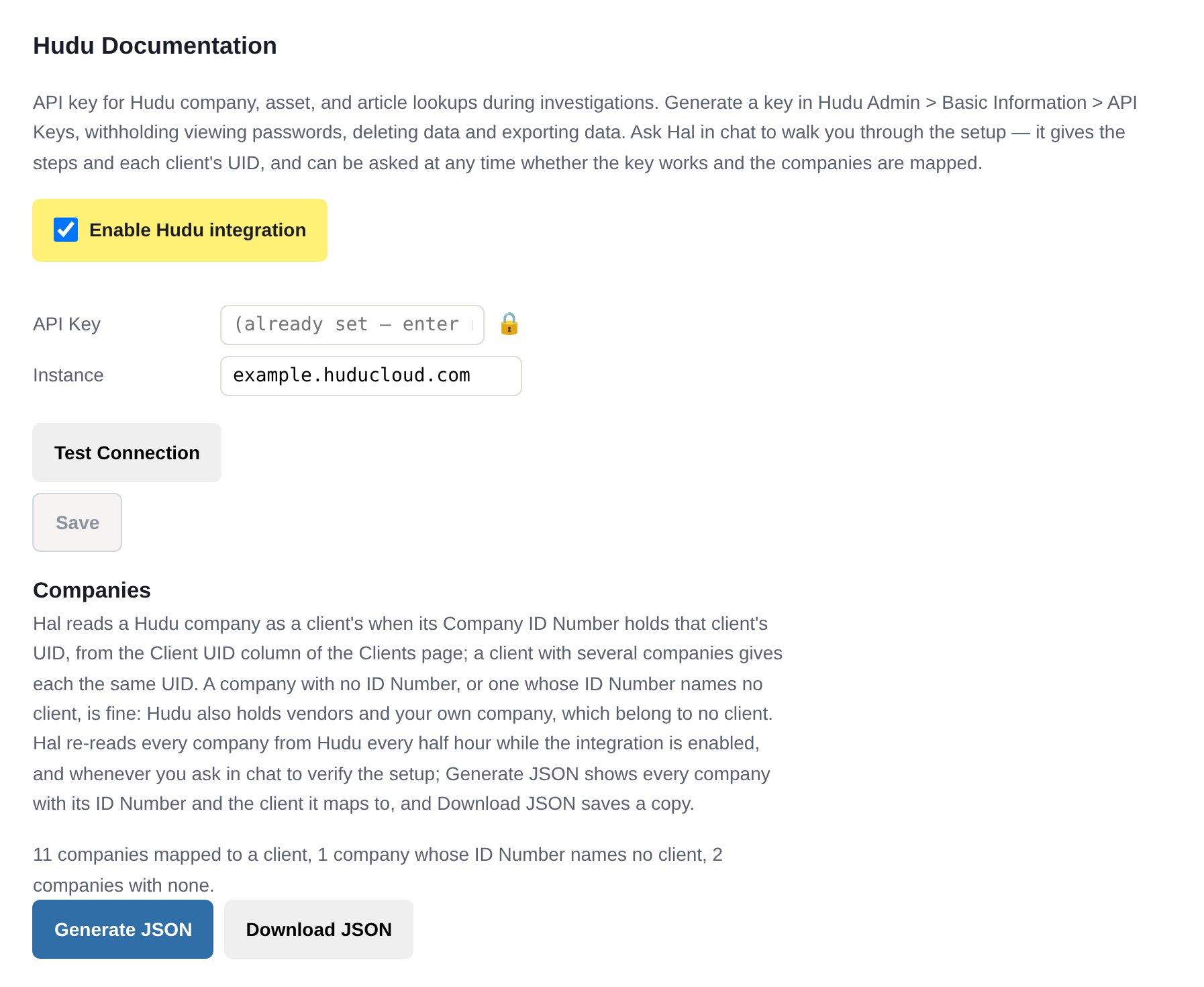
In the Hal portal, open Settings → Hudu Documentation, tick Enable Hudu integration, paste the key into API Key, set Instance to the hostname you sign in to Hudu at, and Save. The key goes into this page, never into chat. Test Connection on the same page signs in with it and shows your Hudu version; Hal makes the same check when he verifies the setup.
Ticking the checkbox is what enables the integration: until it is ticked and saved, Hal reads nothing from Hudu, and his verification says so.
Give each client’s companies its UID
Hal needs to know which of your Hudu companies belong to which client. You tell him with Hudu’s own Company ID Number field, set once per company. In chat he lists each client’s value as he walks you through this.
- For each client, copy its client UID from the Client UID column of
Hal’s Clients page (it begins
cli_, and the column has a copy button). - In Hudu, edit each company that is that client’s and set its Company ID Number to the UID. Paste it rather than typing it; case does not matter. A client with several companies, a head office and its sites, gives each of them the same UID.
- Companies that are no client’s, vendors and your own company, need nothing. Hal reads a company as a client’s only when its ID Number is a client’s UID, so a vendor can keep whatever value it already holds there.
- Tell Hal you’re done. He reads every company on the spot and tells you which companies map to which client, which clients have no company, which ID Numbers name no client, and how many companies have none. When an ID Number that names no client looks like a client’s, because it is that client’s short code or the company’s name suggests it, he gives you that client’s UID to paste. Ask him the same question any time later, for every company or for one.
His check cannot see two things, and he says so: the key’s permissions, which Hudu’s API does not report, so confirm the three are withheld when you create the key; and whether each mapped company is the right client’s, which is yours to read in the list.
Hal re-reads every company every 30 minutes while the integration is enabled. Because the value is the client’s permanent UID rather than a name, you can rename a client in Hal and nothing in Hudu needs touching. A company whose ID Number names no client is read as no client’s, and Hal raises no alert for it: the field is Hudu’s own, and vendors may hold their own values there. A mistyped UID on a client’s company therefore maps nothing until it is corrected, which is why his verification lists every ID Number that names no client.
The Companies block on Settings → Hudu Documentation shows the same state at a glance: one line counting the companies mapped to a client, those whose ID Number names no client, and those with none. Generate JSON lists every company with its ID Number and the client it maps to, and Download JSON saves a copy.
Rotating the key
In Hudu, create a new key with the same three things withheld, paste it into Hal’s Settings → Hudu Documentation and Save, then delete the old key in Hudu. To remove Hal’s access entirely, delete his key in Hudu.
See what Hal surfaces on your own clients.
No deck. Ask us anything first. When you want to see Hal on your own tenants, we sign a short evaluation agreement and stand up your instance; you connect one tenant, Hal watches it for 14 days, and we walk you through what he found.
- 01You ask us your questions. No deck, no demo dataset.
- 02You sign a short evaluation agreement, and we stand up your own instance.
- 03You connect one tenant from your own admin console. Hal watches it for 14 days.
- 04We walk through what he found. Keep going month to month, or revoke the scopes yourself and stop.