1Password
What Hal reads
Three feeds from each 1Password account, through its Events API:
- Sign-in attempts — every attempt to sign in to the account, with its outcome (success, credentials failed, MFA failed, blocked by a firewall rule) and the exact reason, the app and platform used, the address and location. In 1Password an MFA failure means the account password and Secret Key were right and the second factor was not; Hal reads it so.
- Item usages — who filled, revealed, copied, edited, exported or shared an item in a shared vault, by vault and item. Hal sees vault and item identifiers, never names or contents.
- Audit events — the account’s change log: recoveries, account password and Secret Key changes, MFA and device changes, vault exports and shares, service-account tokens, access grants, and, in your own account, your technicians’ launches into managed companies.
Each event lands in that client’s triage with everything else Hal sees. The first pull reaches back 30 days; after that Hal reads the feeds every cycle.
Access is read-only, and that is enforced by the credential, not by a promise: an Events Reporting token can read events and nothing else. Hal cannot read an item’s contents, cannot change anything in the account, and holds no service account.
One token per account
Every 1Password account issues its own token. For each managed company you want Hal to read, you issue the token inside that company’s account after Launching into it from your MSP console; for your own company you issue one signed in to your own account. Your own company is a client of your Hal like any other, and Hal knows it is yours: ask Hal to set your company up as a client and say that it is you.
Before you start
- You need to be an owner or administrator of the account (for a managed company, your technician’s launched session is one).
- Note which region the account is hosted on:
1password.comfor most,1password.ca,1password.euorent.1password.comotherwise. Hal asks for it.
Issue the token
- From your MSP console open Managed Companies and Launch into the company. It opens in a new tab on that company’s own address; the rest happens there. (For your own company, sign in to your own account.)
- In the sidebar select Integrations. If other integrations are already listed, select Directory.
- In the Events Reporting section choose Other, name the
integration
Hal, and select Add Integration. - Token Name:
Hal. Expires After: leave Never; you can revoke the token from this page at any time, and if your policy requires an expiry, Hal warns you two weeks before it and you rotate it then. Events to Report: all three — sign-in attempts, item usages, audit events. - Select Issue Token. The token is shown once. 1Password offers to save it in a vault; that is fine.
Hand it to Hal
In the Hal portal chat, as a Hal admin, tell Hal which client this account belongs to: “Connect 1Password for Acme.” He opens a paste box for that client under Settings → 1Password (it stays open for a day; asking again re-opens it) and relays the steps above. Paste the token, pick the region, Save, and tell him you’re done. The token never passes through chat.
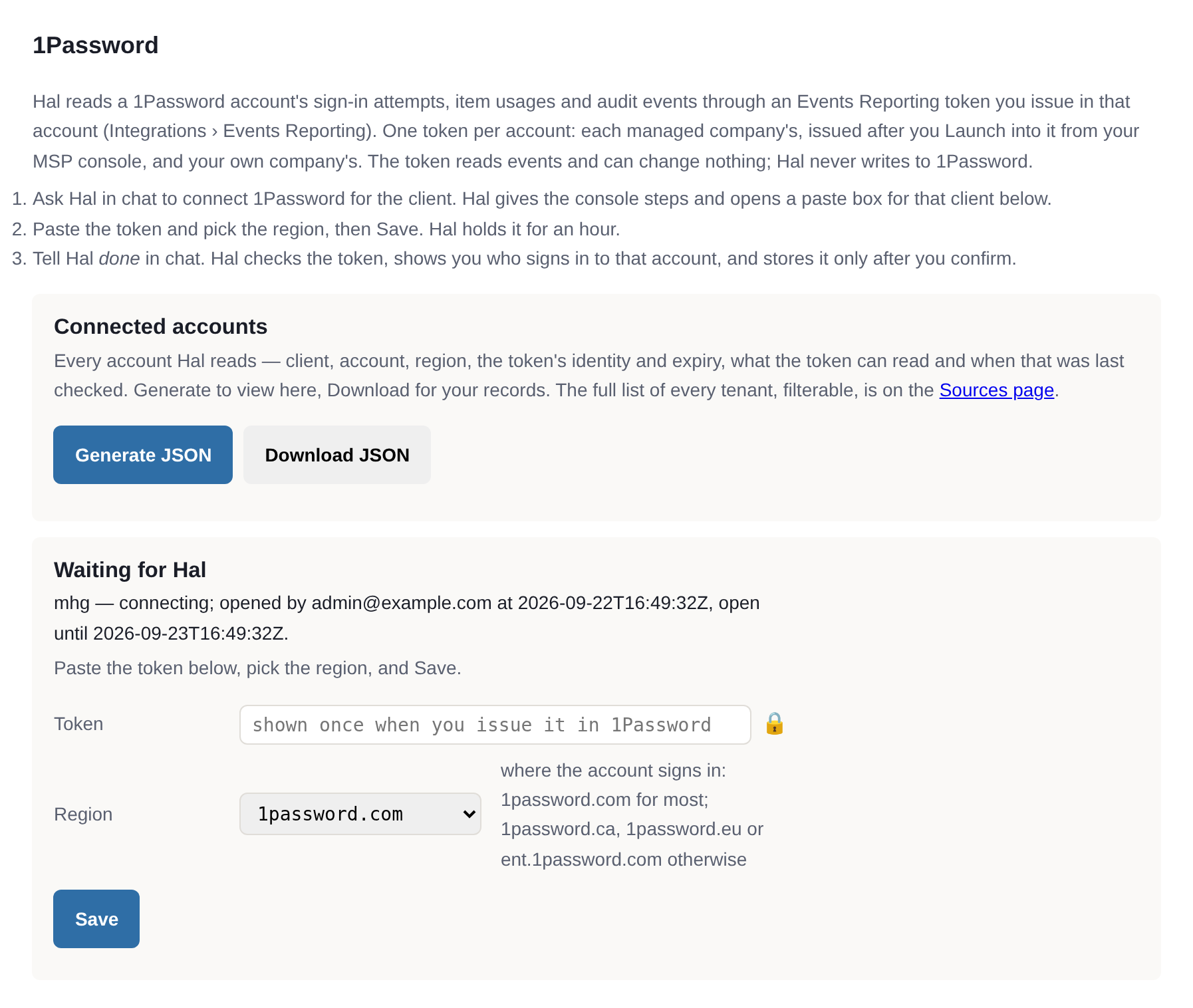
When you say done, Hal reads the paste and checks it against 1Password: he confirms which account issued it and which of the three event types it may read, and because the API does not name the account, he reads who signed in to it over the last week — how many people, their email domains, how many are your own technicians — and the newest sign-in, and asks you to confirm this is Acme’s account. Nothing is stored until you do. Say yes and he stores the account and the token, creates the client’s 1Password log source and connects it to the detection pipeline; the first pull runs in his next cycle, 30 days back. Say no and he closes the box and writes nothing.
If the token is rejected, was issued without one of the three event types, names an event type that could not be read just then, or belongs to an account already connected — including your own account when you meant a company’s, which happens when the token was issued without Launching first — Hal says so and tells you what to change. To replace a token later, ask Hal to rotate Acme’s 1Password token: he opens the box again, checks that the new token belongs to the same account, and swaps it in.
What Hal shows
Settings → 1Password lists the connected accounts as a JSON you can generate on the page or download: client, account, region, the token’s identity and expiry, the event types the token can read and when that was last checked. The Sources page shows each client’s 1Password source with three pills, one per feed.
Related: the other integrations Hal reads, and how events move through triage.
See what Hal surfaces on your own clients.
No deck. Ask us anything first. When you want to see Hal on your own tenants, we sign a short evaluation agreement and stand up your instance; you connect one tenant read-only, Hal watches it for 14 days, and we walk you through what he found.
- 01You ask us your questions. No deck, no demo dataset.
- 02You sign a short evaluation agreement, and we stand up your own instance.
- 03You grant read-only scopes on one tenant in your own admin console. Hal watches it for 14 days.
- 04We walk through what he found. Keep going month to month, or revoke the scopes yourself and stop.