Reading a Report
What’s in an alert
When Hal escalates something, you don’t get a raw log line, you get an analyst’s write-up. Every alert carries the same parts:
- Severity, how much attention it needs, from informational up to critical. A report no AI model could rate is UNASSESSED, ranked between high and medium.
- Affected scope, which client, which identity, which device.
- What happened, the analysis in plain language, with the events that triggered it.
- Remediation, the specific steps to fix it, not just a warning.
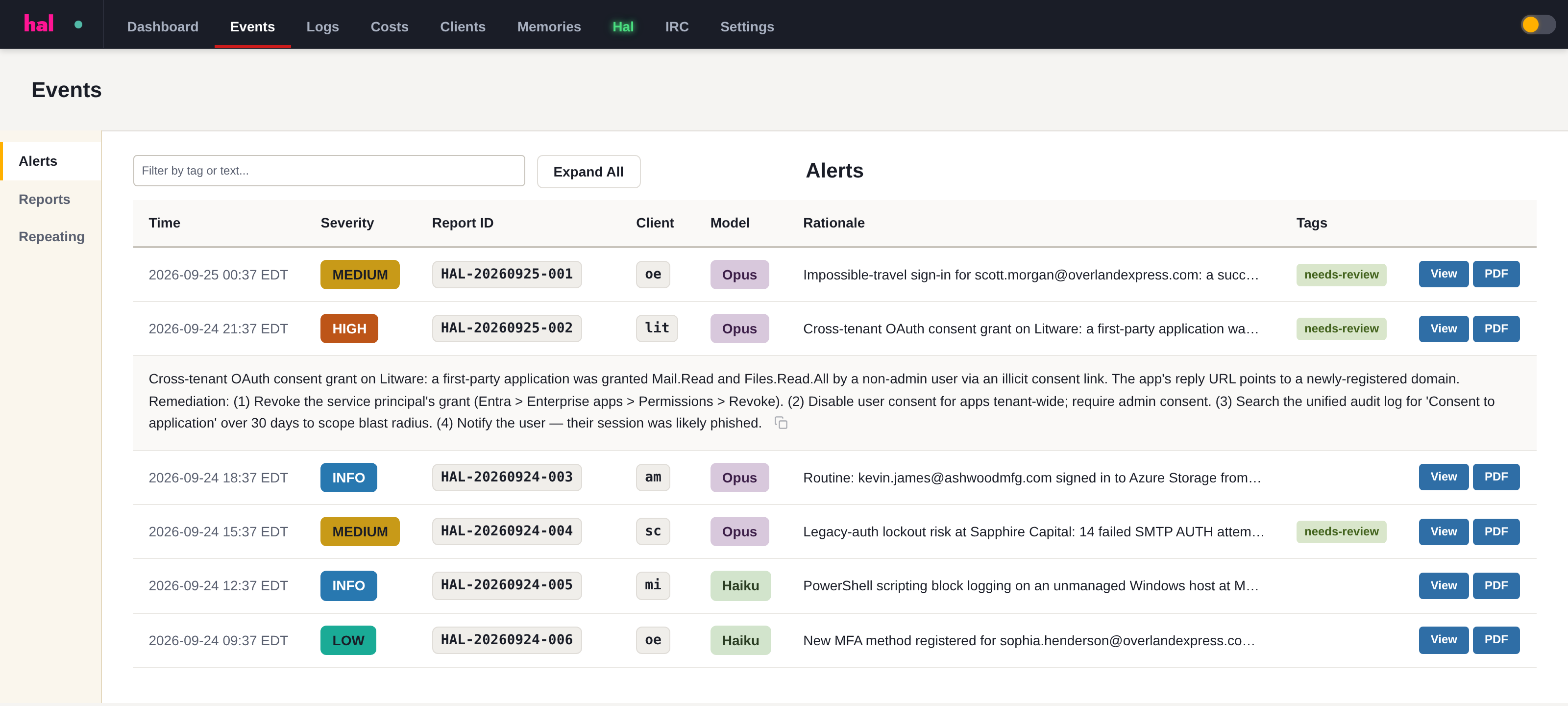
Each escalation is also written up as a report. On the portal’s Alerts and Reports pages, View opens it as a page in a new tab for reading and PDF downloads the same report as a signed PDF you can hand to a client or a cyber-insurance carrier, see Report Verification. To see how an event earns an escalation in the first place, read How Triage Works.
Where every value comes from
Every count, time and address in a report is either filled in by code from a result Hal read, or typed by Hal and checked against what he read: each word holding a digit or an @ must appear exactly in the data he read, his instructions or your messages. A word with neither, such as a name, is not checked this way. Tables are built by code from the result, row for row, never typed by the model. A table read across several pages holds every row once, and a result that changes while it is being read is refused rather than shown in part.
On the report’s page (View) and in the web chat, a value with a source, and a table’s title, carry a faint dotted underline. Hover over one or focus it with the keyboard, and a box says where it came from; on a touch screen, tap it, and tap again or anywhere else to close it. Details in the box expands to the exact query and field the value came from. The PDF prints the values without the underline or the box.
When something Hal typed fails the check, he is sent back to correct it, up to twice. If it still fails, the report is delivered, never withheld, and each failing word is followed by (unverified). On the report page and in the PDF that word is also shown in amber, with a box that reads “Hal typed this; it is not in the data he read”; email, Slack and a Zendesk note carry the text mark alone. A value code could not find shows as [value not found], marked the same way. Hal’s support team is told whenever a report goes out with an unverified item.
When a result the report relies on was only partly read, or the read failed, a line at the end names that read and says so: that it returned part of its data, and why (the search held more results than were read, for instance), or that it failed.
UNASSESSED reports
UNASSESSED means no AI model rated how severe the escalation is. It shows in violet on the Events page and in the PDF, as a purple dot in Slack, and by name in the email. Nothing unrated is ever filed as low. A report becomes UNASSESSED in one of two ways:
- Every model declined the investigation. Anthropic, the AI provider, declines some requests on its policy grounds, and the backup model declined too, or there was none. The report opens: “UNASSESSED — Hal could not finish assessing this escalation. The AI model Hal uses declined to complete the analysis, so it has no severity rating. A person needs to review it.” (“models” when more than one declined.) What Hal’s triage found follows: its first reading of the events, the second opinion where there was one, and the events it read. When the investigation had written something before the models declined, that comes last, under its own heading. The title says Hal could not finish assessing it and names the person, ticket or watch it concerns, and no AI model is named on the report.
- The investigation ran but named no severity, after the first read of the events was declined. The report is Hal’s investigation, without the banner.
An UNASSESSED report is emailed at every alert threshold, whatever yours is set to, as Settings → Email notes. When the previous day’s most severe alert was UNASSESSED, the next morning’s digest headline reads UNASSESSED EVENTS NEED REVIEW. Hal’s support team is notified of each one as well.
What to do with one. A person on your team reviews it: what Hal’s triage found, the events the report lists, and the accounts or hosts it names. Hal does not investigate it again on his own, because the same request would be declined again. You can ask him about the events in chat, and if the chat’s model declines too, he says so (see Using Hal in Chat). When Hal could not investigate a Zendesk ticket, his internal note on the ticket opens with the same banner.
When a backup model completed the investigation
If Anthropic declines an investigation on the model you chose, a backup model completes it, and the report opens with one sentence naming the model that declined and the one that completed it. The Model pill on the Events page and the model on the PDF name the model that completed it. If the backup model is momentarily busy, Hal tries it once more before treating the request as declined. Nothing is needed from you: the report is rated and emailed under your threshold like any other.
See what Hal surfaces on your own clients.
No deck. Ask us anything first. When you want to see Hal on your own tenants, we sign a short evaluation agreement and stand up your instance; you connect one tenant, Hal watches it for 14 days, and we walk you through what he found.
- 01You ask us your questions. No deck, no demo dataset.
- 02You sign a short evaluation agreement, and we stand up your own instance.
- 03You connect one tenant from your own admin console. Hal watches it for 14 days.
- 04We walk through what he found. Keep going month to month, or revoke the scopes yourself and stop.