Controlling AI spend
Hal’s AI usage is billed to your own Anthropic account, and the Costs page in your portal breaks it down by role (triage, the second-opinion gate, investigations, the weekly review, chat) and by model. This page is about the levers that move those numbers. All of them are yours to set, all of them live in the portal, and none needs a restart.
Where the money goes
Two things account for most of it. The fast triage pass (Tier 1, on Haiku) is cheap per call and relentless: it runs over every client, every cycle, all day. The investigations (Tier 3) are expensive per report and driven by how many escalations there are. Chat is the third, and it’s whatever your team makes it. People under sentry are a fourth line if you use it: reads are cents a day per person, and the investigations they trigger are what costs. Hal reports a person’s cost as that total, with the split, when you ask.
1. Cycle sleep: how often Hal looks
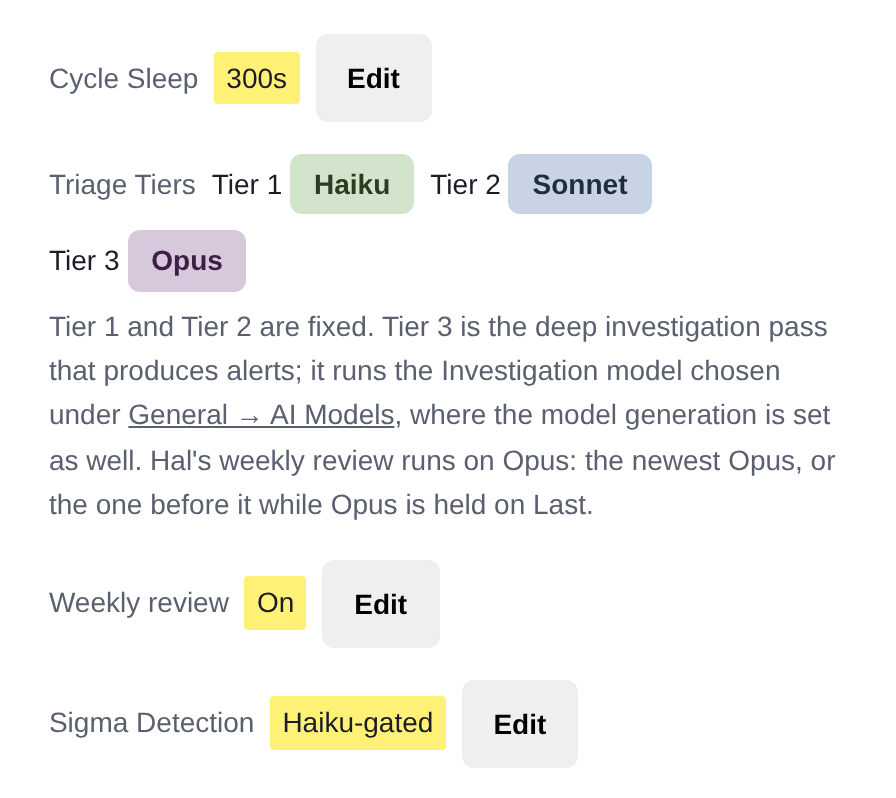
The pipeline is a loop. One cycle triages every client that has new activity, then Hal sleeps for a set pause, then the next cycle starts. Cycle Sleep, on Settings → Triage Pipeline, is that pause in seconds. The default is 300, five minutes, and the range is 0 to 3,600.
Why it matters: Tier-1 cost is per client per cycle, not per event. Every client with anything left after the noise filters gets one triage call each cycle, whether five events arrived or five hundred; a client with nothing new costs nothing that cycle. So Tier-1 spend is roughly cycles per day × active clients, and cycles per day is what the sleep sets. Halve the cadence and you roughly halve that line on the Costs page.
What it trades is detection latency. On a busy instance a cycle is already a few minutes of work, and the sleep adds to the gap between an event arriving and Hal’s first look at it. On our own deployment, back when the default was 30 seconds, moving to 180 took the loop from about 460 cycles a day to about 200 and cut Tier-1 spend by roughly a quarter to a third, at the cost of a couple of minutes on the gap between an event arriving and Hal’s first look. Minutes are the right unit to think in: an escalation doesn’t get better for arriving ninety seconds sooner, and the deep investigation that follows is what actually takes the time. That measurement is why the default is now five minutes: it is the cadence most MSPs should simply keep. Shorten it if a faster first look is worth the Tier-1 bill; lengthen it to save more. The Pipeline page (under Logs) charts real cycle duration, so you can see the cadence you’re actually getting. Changes take effect on the next cycle.
2. The investigation model
The Investigation model, under Settings → General → AI Models. Tier 1 (Haiku) and Tier 2 (Sonnet) are fixed; Tier 3 is the pass that produces the written report, and you choose what runs it. Sonnet costs less per investigation; Opus reasons deeper on complex, multi-vector events and is the default; Fable is the frontier option. The choice takes effect on the next investigation. The Triage Pipeline page shows the model each tier is running on right now and links back to General, where the same section also lets you hold a family on its prior generation while a new release settles. The weekly review is unaffected by that choice: he runs it once a week on Opus, at the generation Model Generations sets for Opus.
3. Sigma detection mode
Sigma Detection, same page, decides what happens when a community detection rule matches:
- Haiku-gated (recommended): every match goes through Tier 1 first, and only escalations reach the second-opinion gate and an investigation. The product’s own figure is a saving of about 90% on Sigma-triggered investigation cost. The trade-off is stated on the setting itself: Haiku may dismiss a genuine match that a direct investigation would have caught.
- Full: high and critical matches skip Tier 1 and go straight to the gate, then investigation. Most thorough, most expensive.
- Disabled: no Sigma annotation at all. Cheapest, and you lose the rule-based context that makes triage sharper.
4. Tell Hal what’s normal
Some activity is normal for one client and would be worth a look anywhere else: the sync server tripping the same rules nightly, the scanner enumerating shares at 1 a.m. A note tells Hal the fact behind it, the named host, account, address or app and what it is expected to do, and he reads it at every tier, so each future occurrence becomes a quick check rather than an investigation, while the divergent case still escalates. Ask Hal in chat what keeps generating noise for a client, or what is driving your AI cost, and he goes through the history, drafts the notes, and adds each one once you confirm it. Noise Tuning covers notes in full.
Where to start
For a new instance: after its first couple of weeks, ask Hal what keeps generating noise and confirm the notes that fit, then set the cycle sleep to a cadence you’re comfortable with, then look at whether Sonnet serves your investigations. Read the Costs page by role after each change; that is the number your Anthropic auto-reload should be sized to, as the API key guide describes.
See what Hal surfaces on your own clients.
No deck. Ask us anything first. When you want to see Hal on your own tenants, we sign a short evaluation agreement and stand up your instance; you connect one tenant, Hal watches it for 14 days, and we walk you through what he found.
- 01You ask us your questions. No deck, no demo dataset.
- 02You sign a short evaluation agreement, and we stand up your own instance.
- 03You connect one tenant from your own admin console. Hal watches it for 14 days.
- 04We walk through what he found. Keep going month to month, or revoke the scopes yourself and stop.