Your Anthropic API Key
Hal’s analysis runs on Claude models billed to your Anthropic account, not ours. That is deliberate: you see every dollar of AI spend on your own invoice, and Hal shows you the same numbers on his Costs page. Setting the account up correctly takes about fifteen minutes, and this page walks every step, including the one place people go wrong.
Read this first
platform.claude.com.

1. Create the Console account
Go to platform.claude.com and choose Continue with email (or Continue with Google if your MSP runs on Google Workspace).

Use a mailbox your company controls and more than one person can reach, such as
it@ or admin@ on your own domain, not a personal address. This account owns
Hal’s keys and billing, and it needs to survive staff changes. Anthropic creates
an Organization for you and makes you its admin; you can add colleagues
later under Settings → Members.
2. Fund it
API usage is prepaid. In the Console, open Settings → Billing, add a payment method and buy credits.
Then turn on auto-reload: pick the balance that triggers a top-up and the amount to reload to. This is the setting that matters most for Hal. He works around the clock, and an account that runs dry at 2 a.m. stops investigating until someone notices. Two things worth knowing before you choose amounts: credits expire one year after purchase and are non-refundable, so buy modestly and let auto-reload keep pace; and Anthropic bills only successful calls, so a failed request costs nothing.
You don’t need to guess Hal’s spend up front. Run him for a couple of weeks, read the Costs page in your portal, and size the reload to what you actually see. The settings that move that number are on Controlling AI spend.
3. Put guardrails on it
Both of these are optional, and both are worth the two minutes.
A monthly spend limit. On the same Settings → Billing page, under Spend limits, click Set limit. This is a hard monthly ceiling below Anthropic’s own cap for your tier. If Hal reaches it, his requests fail until the month rolls over or you raise the limit, which takes seconds and is the right failure mode: a stopped analyst you notice, rather than a bill you don’t.
You will notice. Whenever Anthropic refuses Hal’s key, for your spend limit, your workspace’s, your tier’s monthly cap, the credit balance or billing, Hal says so on the portal’s dashboard and Health page and emails your alert address, naming what to raise and where in the Claude Console, and he says the same if you chat. Both clear as soon as Anthropic accepts the key again. Logs keep being collected meanwhile, and once the key works again Hal triages what arrived in the previous eight hours; anything older is stored but not triaged.
A dedicated workspace. Under Settings → Workspaces, click
Create workspace and name it Hal. A workspace of his own means Hal’s key,
spend limit and rate limits are scoped to him, and Anthropic’s Usage page
shows his consumption separately from anything else your team ever builds on
the same account. The Default Workspace can’t carry its own limits, which is
the practical reason to make one.
4. Create the key
Hal takes one key, and every part of him runs on it: triage, the second-opinion gate, investigations, the weekly review and chat. You don’t lose any cost visibility by having one key. Hal’s Costs page already breaks spend down by role and by model, finer than Anthropic’s console can show per key.
Open Settings → API keys and click Create key.
- Name it
Hal, so it’s obvious in a year what it is for. - Linked account. For an integration that runs unattended and has to
survive staff turnover, Anthropic recommends a service account rather
than a personal key: a personal key acts as you and stops working the day you
leave the organization. An organization admin creates one under
Settings → Service accounts and adds it to the
Halworkspace; then pick it here. If you’d rather not set that up today, a personal key works, just remember it is tied to the person who made it. - Workspace:
Hal. - Expiration. Choose Never for an unattended integration you will rotate yourself, or a long expiry with a calendar reminder. Anthropic emails the key’s creator seven days before a key expires; an expired key simply stops Hal until a new one is pasted in.
Click create and copy the key now. It begins sk-ant-api… and is shown
exactly once; close the dialog and you’ll be creating another.
5. Hand it to Hal
In your Hal portal, open Settings → API Keys.
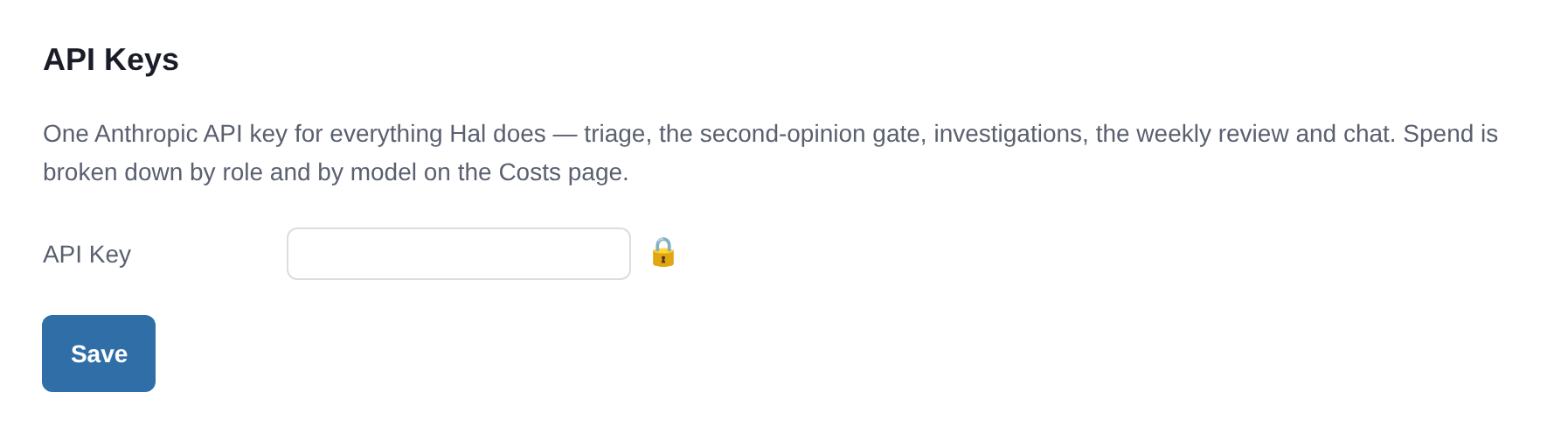
Paste the key and Save. It takes effect on Hal’s next call; nothing restarts.
That’s it, Hal’s chat and his round-the-clock triage now run on your account.
What to expect in the first week
Anthropic places brand-new organizations in an Evaluation tier with lower rate limits while the account builds usage history, then raises them automatically. If Hal mentions rate-limit errors in his first days, that is almost certainly why, and it resolves itself; his retries absorb short bursts. Standard tiers (Start, Build, Scale) each carry a monthly spend cap, currently $500 a month for Start. Your tier, your current limits and a Request rate limit increase button are all on the Console’s Rate limits page under Settings; Anthropic’s own rate limits documentation has the current figures.
Rotating or revoking a key
Everything happens on Settings → API keys in the Console. Disable is reversible and instant, the right first move if you suspect a key has leaked. Delete is permanent. Either way, create a new key, paste it into Hal’s Settings → API Keys, and Save; Hal picks it up from there.
With the key in place, the next step is connecting your first tenant: Onboarding Tenants.
See what Hal surfaces on your own clients.
No deck. Ask us anything first. When you want to see Hal on your own tenants, we sign a short evaluation agreement and stand up your instance; you connect one tenant, Hal watches it for 14 days, and we walk you through what he found.
- 01You ask us your questions. No deck, no demo dataset.
- 02You sign a short evaluation agreement, and we stand up your own instance.
- 03You connect one tenant from your own admin console. Hal watches it for 14 days.
- 04We walk through what he found. Keep going month to month, or revoke the scopes yourself and stop.